User manual
Everything you need to use the Scenaxis Bid Tool: setting up your company, analysing and summarising tenders, tracking the client's changes, documents, planning the team, emails, reports and billing. Version 3.23 · updated 13 October 2026. Screenshots use sample data.
1. Introduction
The Scenaxis Bid Tool reads a client's tender documents, tells you whether the bid is worth pursuing, summarises the tender, tracks every change the client makes during the tender, and helps you staff the bid, cost it and deliver it on time. This manual covers version 3.23 at bidtool.scenaxis.com.
What the tool does
- Analyses tender packs. Upload the invitation to tender, brief, contract, specifications and pricing schedules. Scenaxis extracts the key dates, budget, risks, deliverables and the effort each role needs.
- Summarises the tender. A one-page overview and a full digest of the client's documents, each point with the document and page it comes from. Export it to PDF or Word.
- Recommends go or no-go. A feasibility score out of 100, a risk score and a timeline verdict combine into a recommendation. Your own decision always wins.
- Tracks the client's changes. Q&A, clarifications and addenda amend the summary, the dates, the deliverables and the risks. Every change is listed with its source (for example "Q&A log p.2 Q14"), can be marked as reviewed, and can be emailed to the team.
- Keeps the documents. Every file added to a tender is stored and can be downloaded one by one or all at once.
- Plans the bid team. Assign people to roles, set their hours per week or per day, and see everyone's load across all tenders.
- Costs the pitch. Team time × cost rates, freelancers and other pitch costs give a pitch budget, checked against a ceiling and an expected return.
- Keeps the bid on track. A deliverables list, key dates, email reminders to the pitch lead, emails to the team, comments, and a Today page that lists what needs attention.
- Reports. Go/no-go and full tender reports (with an AI-written narrative), PDF, Word and Excel exports, and statistics on your win rate and pitch spend.
Who it is for
Event, live-show, ceremony and experiential agencies that respond to tenders: bid managers, producers, creative directors and the directors who decide which bids to pursue. Everyone in a company account shares the same tenders, team and settings; what each person can change depends on their role (section 3).
How to use this manual
Sections follow the order you will meet things: getting started, setting up your company and its users, then daily use (Today, tenders, Pipeline, Workload), then reports, currencies, plans and billing, and troubleshooting. Screenshots use the built-in sample data, so names and figures are examples.
| Term | Meaning in this manual |
|---|---|
| Tender | One opportunity from a client, with its documents and analysis |
| Pitch lead | The person who leads the response and receives reminders |
| Tender time | Hours a week a person can spend on bids (not their full working week) |
| Pitch budget | What it costs you to prepare and present the bid, not to deliver the event |
| Change | Something a Q&A, clarification or addendum adds, changes or removes in the tender |
| Role | What a user can do: viewer, commenter, editor or admin |
2. Getting started
Each person needs their own log-in. Open bidtool.scenaxis.com in any modern browser on a computer, tablet or phone.
Create your account
- On the login screen, click Start your free week.
- Enter your first name, last name, company name, work email and a password of at least 8 characters.
- Tick the box to accept the Terms of Service and Privacy Policy, then click Create my account.
- Open the confirmation email and click the link. You return to the tool, signed in.
- Choose a plan (Solo, Team or Agency, section 12) and click Start my free week. You enter your card on Stripe's secure page; nothing is charged today.
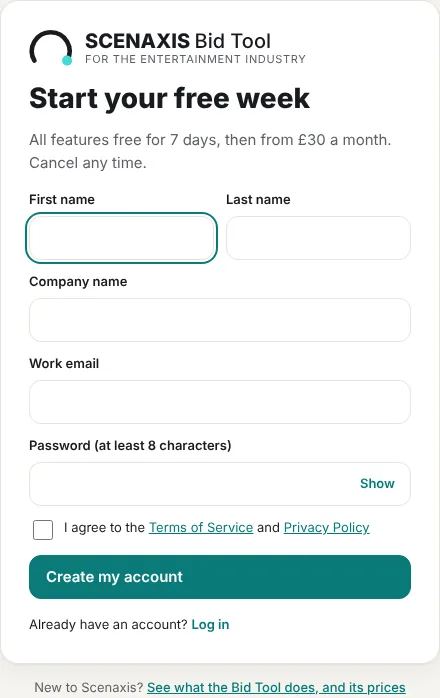
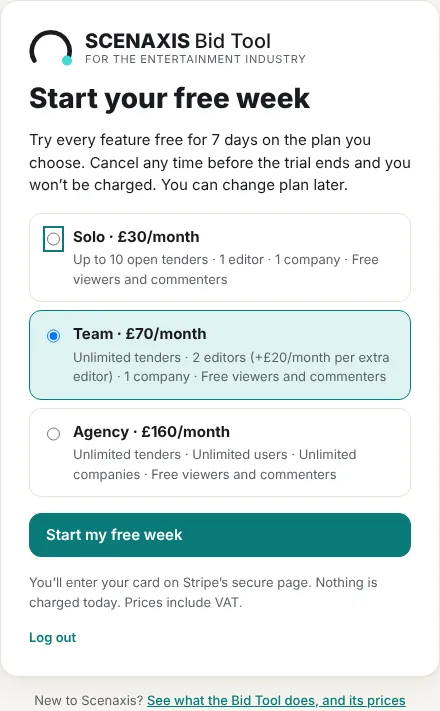
The trial lasts 7 days with every feature of the plan you chose. Cancel before it ends and you are not charged. You can change plan at any time afterwards. If an account already exists for your email, the tool says so and offers to log you in instead.
Joining by invitation
When an admin invites you, you receive an email with a link. Click it, then create your log-in with the email address the invitation was sent to (your name is filled in for you). You join the company with the role the admin chose; you don't choose a plan or enter a card. Next time, simply log in with that email and password.
If the link opens in a browser where someone else is already logged in (for example the admin who sent it), the tool offers Log out and continue as the invited person. The invitation stays valid until you accept it or the admin cancels it.
Log in and reset your password
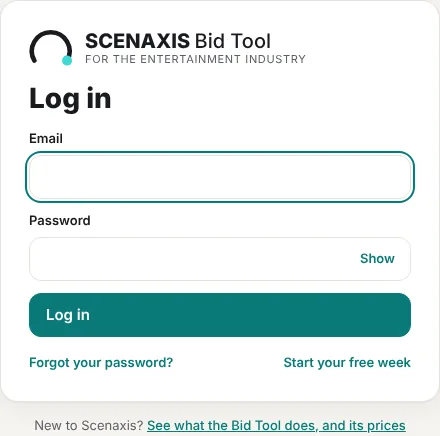
Enter your email and password and click Log in. Click Show to check the password you typed. Forgot it? Click Forgot your password?, enter your email, and follow the link in the email to choose a new one. New to Scenaxis? under the box opens the Bid Tool website.
What's new at login
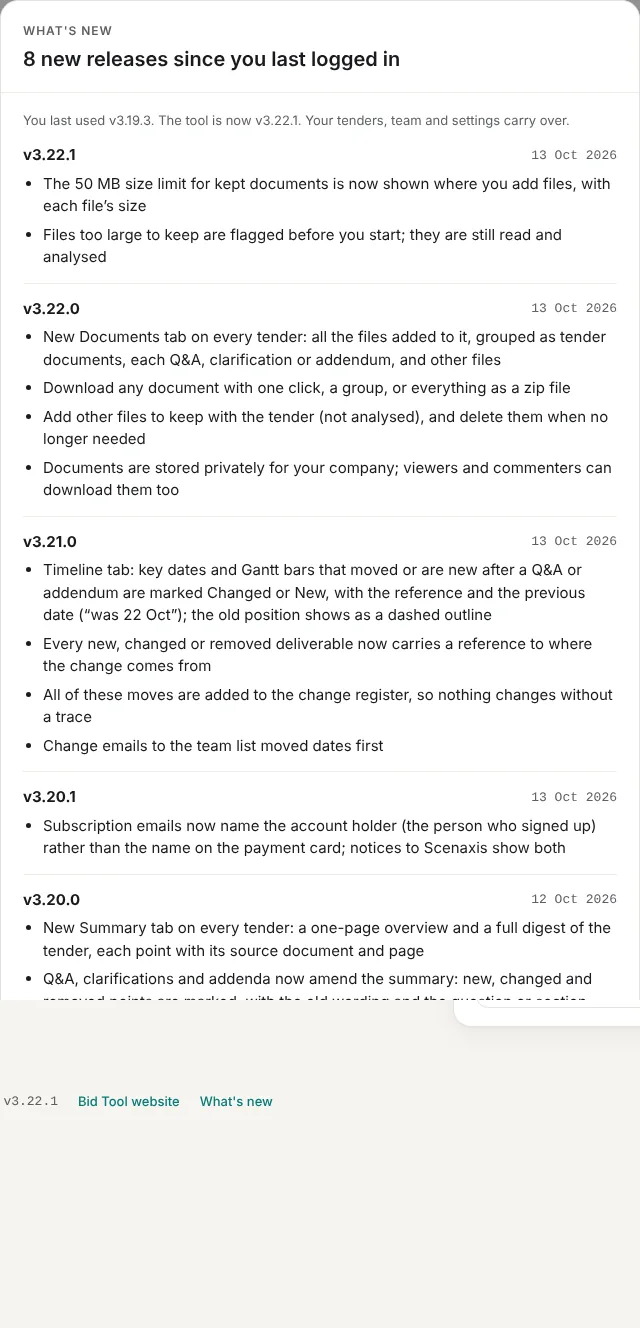
After an update, the first time you log in a window lists what changed since you last used the tool, newest first. Got it closes it; See the full release log opens every release. The version number is always shown next to the logo.
The screen layout
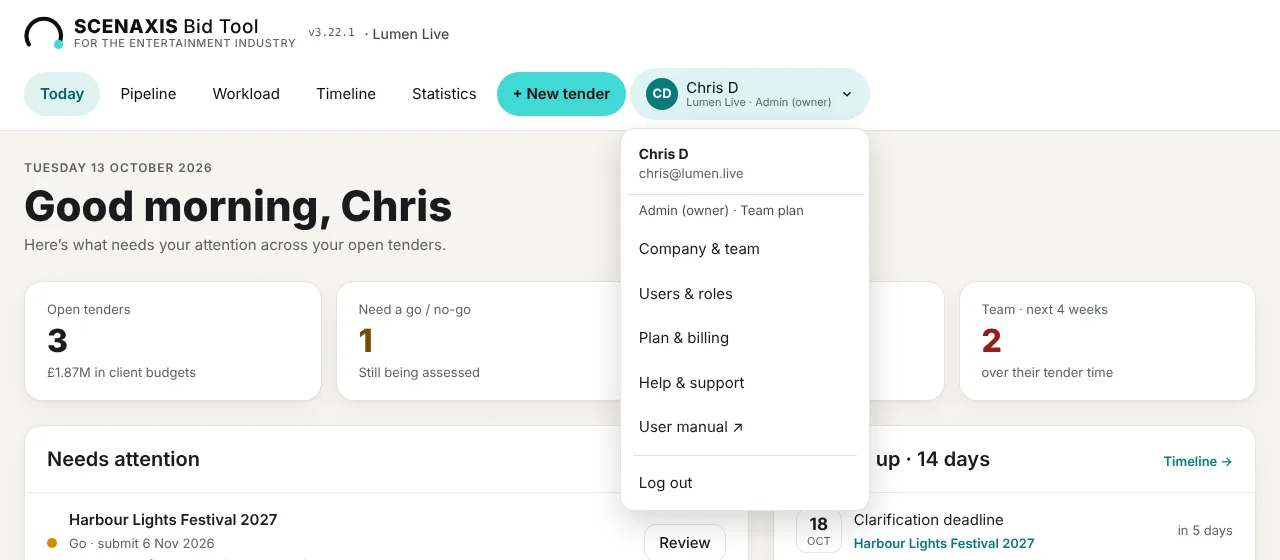
The top bar is the same on every page. The Scenaxis logo takes you back to the Today page. On the right, your name, your company and your role are always shown.
| Menu item | What it opens |
|---|---|
| Today | What needs attention now, key dates and team load (section 4) |
| Pipeline | All tenders with scores, budgets and status (section 7) |
| Workload | Bid hours per person, week by week and day by day (section 8) |
| Timeline | Every open bid on one calendar (section 10) |
| Statistics | Win rate, pitch spend and decisions over time (section 10) |
| + New tender | Upload a client's documents for analysis (section 5). Editors and admins only |
| Trial badge | Days left in your free trial (only during the trial) |
| Account (your name) | Your role and plan, your companies (Agency), Company & team, Users & roles, Plan & billing, Help & support, User manual, Log out |
Press Esc or click elsewhere to close the Account menu. At the bottom of every page: the version, Bid Tool website and What's new.
On a phone
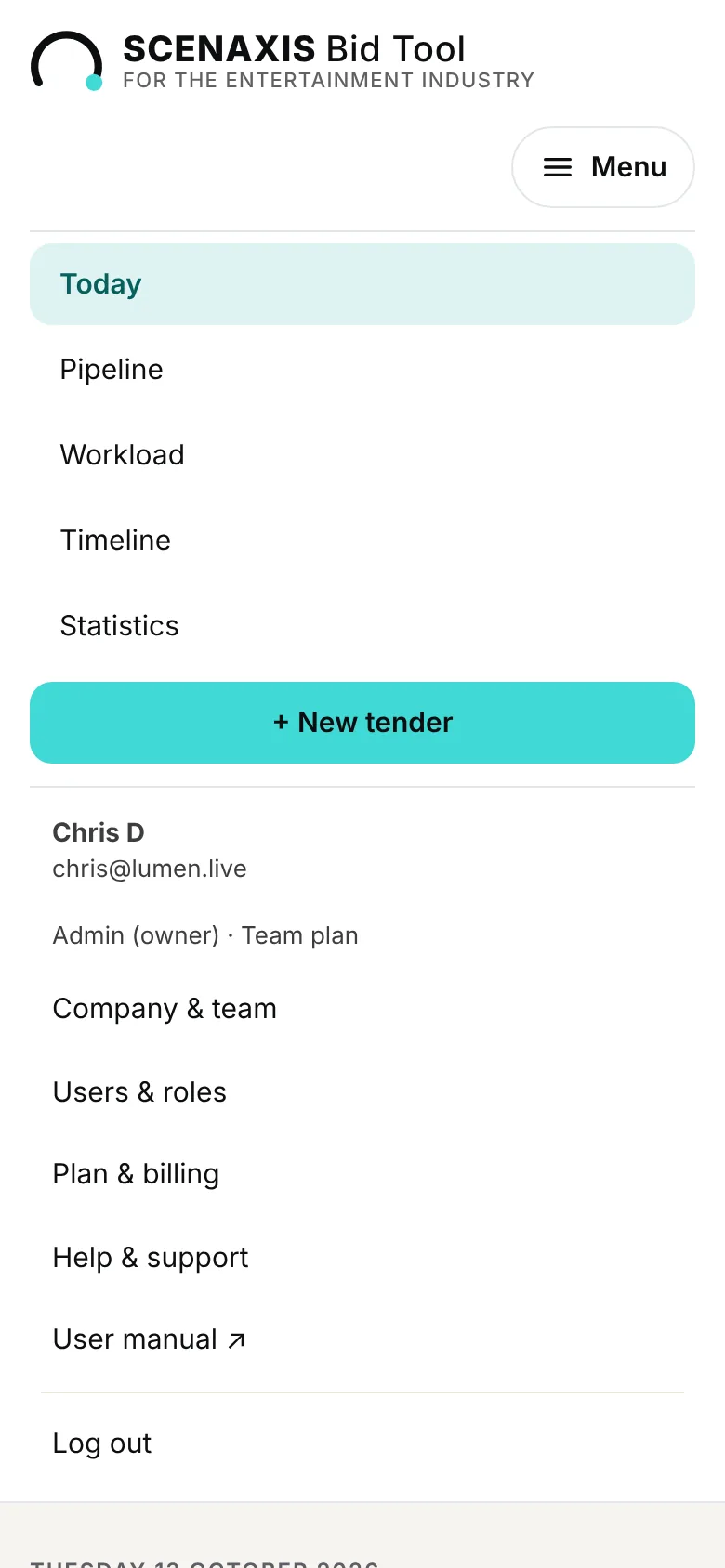
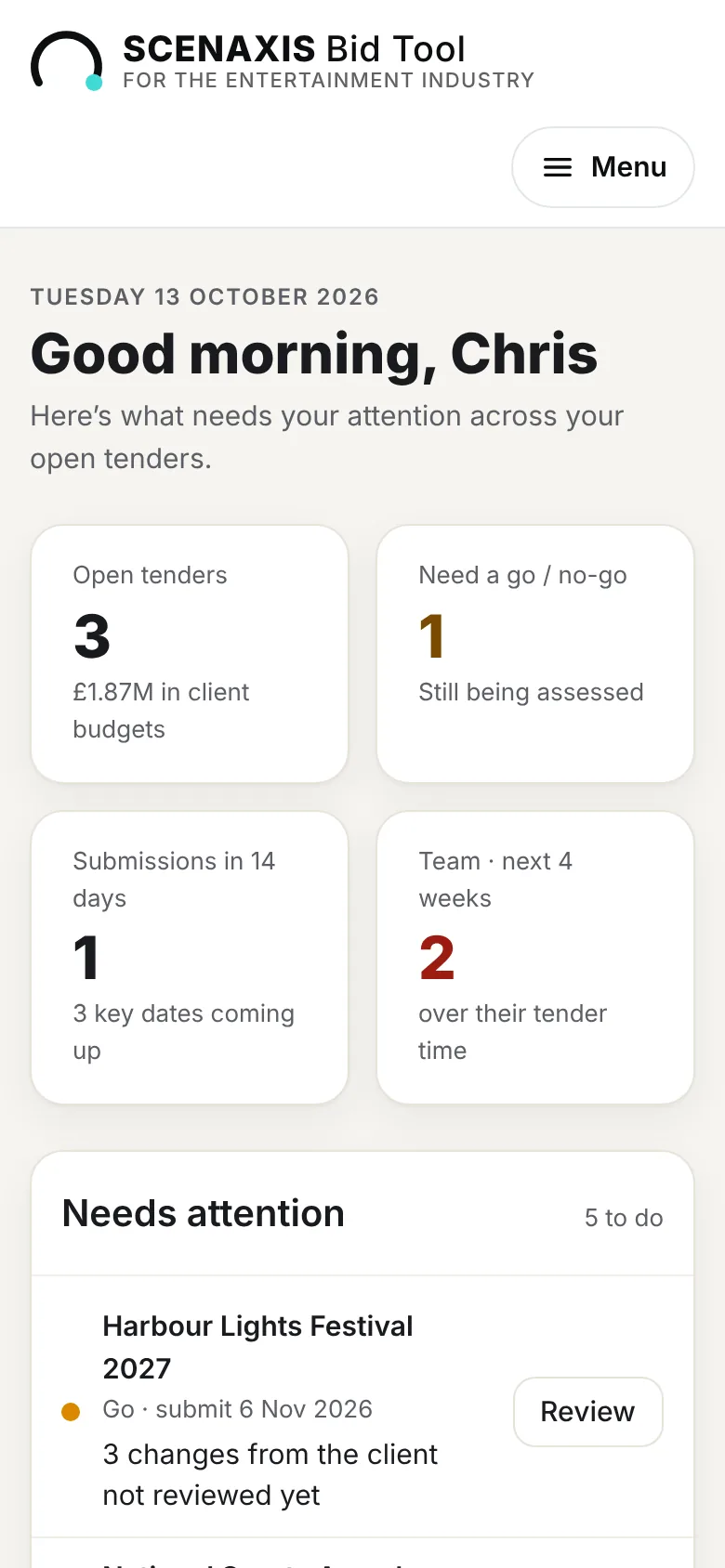
On narrow screens the menu folds into a single Menu button. Tap it to show every page, including the Account items. Tables such as the Pipeline turn into cards that are easier to read.
Help bubbles and saving
- A small ? next to a heading or field explains it. Hover or tap it.
- Changes save as you go. A short “Saved” message appears at the bottom of the screen. There is no Save button for most fields.
- Everyone in your company sees changes within seconds, without refreshing.
- The green Support button (bottom right) opens WhatsApp with your name and company filled in.
Read-only access
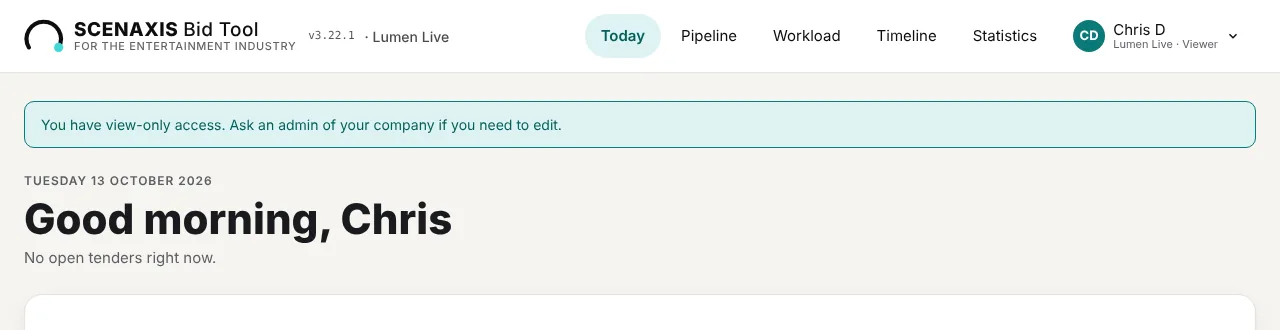
Viewers and commenters see everything but can't change it; a banner at the top says so. The same applies to everyone when the subscription isn't active: an admin can renew it from Account → Plan & billing.
3. Setting up your company
Spend 15 minutes here before your first tender: the profile drives the fit scores, and the team, tender time and cost rates drive staffing, workload and pitch budgets. Open it from Account → Company & team. Then invite your colleagues from Account → Users & roles.
Company profile
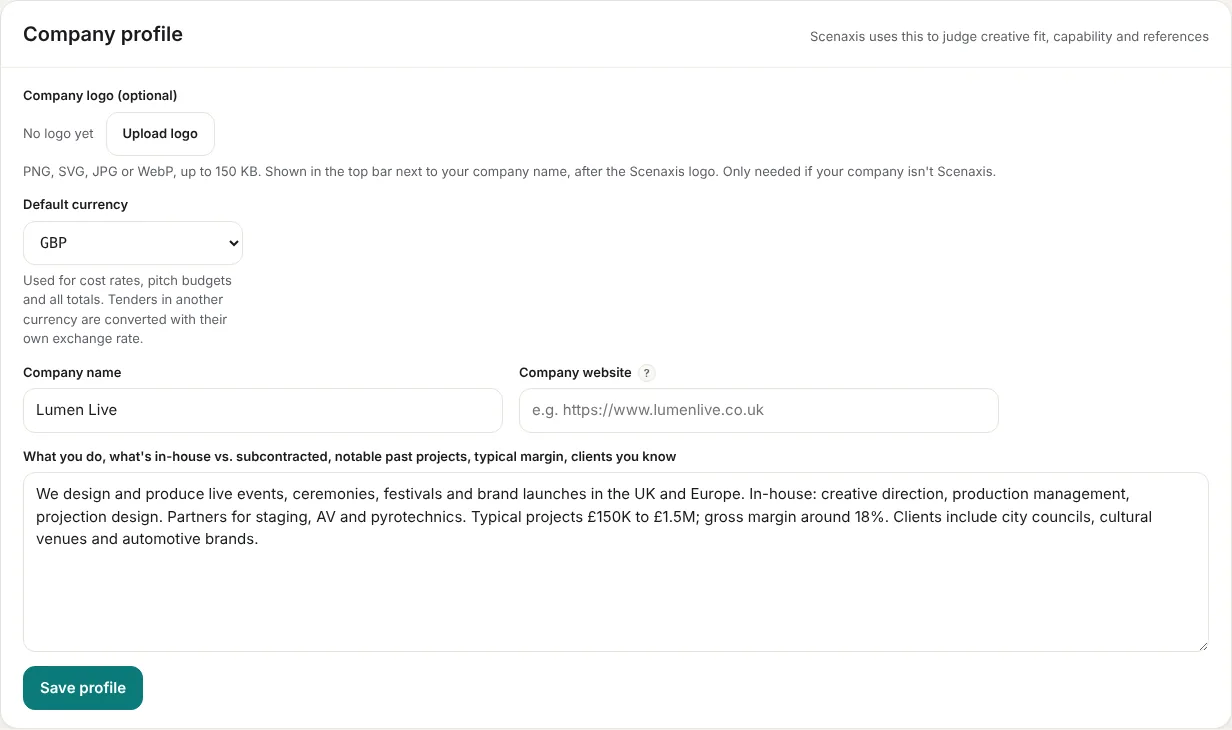
| Field | What to enter | Why it matters |
|---|---|---|
| Company logo | PNG, SVG, JPG or WebP, up to 150 KB | Shown in the top bar next to your company name |
| Default currency | The currency you account in (e.g. GBP) | Used for cost rates, pitch budgets and all totals |
| Company name | Your trading name | Shown in the top bar, reports and emails |
| Company website | Your site address | Context for the analysis |
| Profile | What you do, what is in-house vs. subcontracted, notable past projects, typical margin, clients you know | Scenaxis judges creative fit, capability and references against it |
Click Save profile when done. A richer profile gives sharper feasibility scores: name your specialisms (e.g. projection mapping, pyrotechnics), your in-house crews and your best reference projects.
Your team
The team on the Company page is the people who work on bids, whether or not they log in to the tool. Each person can be picked on any tender.
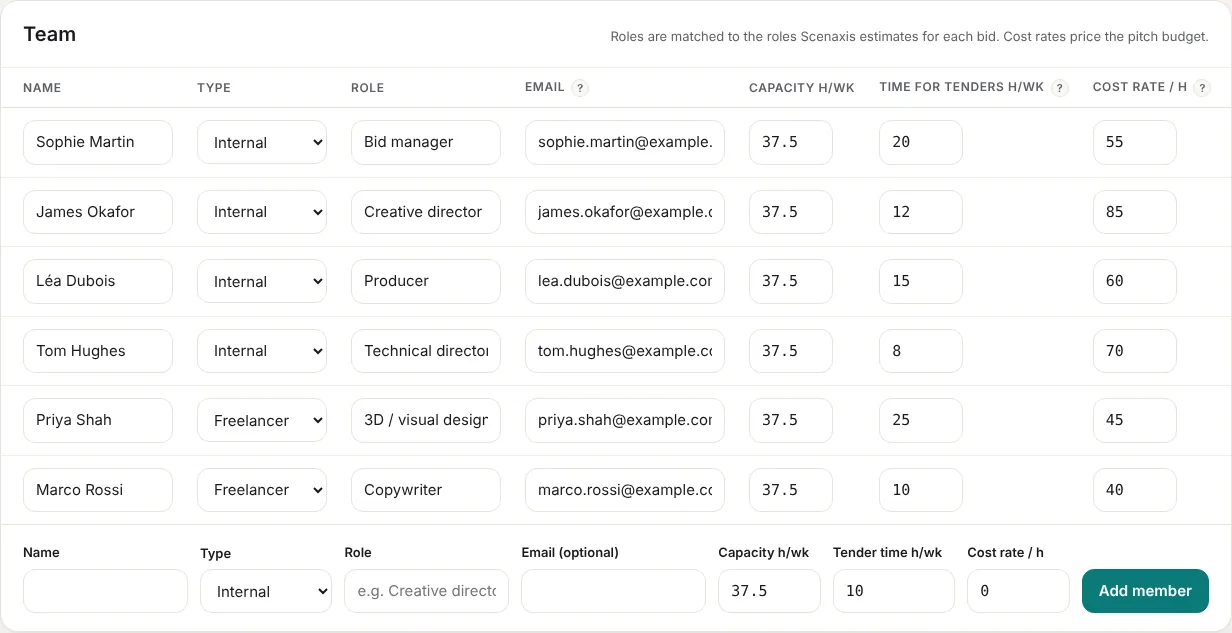
| Column | Meaning | Example |
|---|---|---|
| Name | Full name | Sophie Martin |
| Type | Internal (employee) or Freelancer | Internal |
| Role | Job title; matched to the roles Scenaxis estimates for each bid | Bid manager |
| Needed for reminders and emails | sophie@yourco.com | |
| Capacity h/wk | Their full working week | 37.5 |
| Time for tenders h/wk | The part of the week they can give to bids | 20 |
| Cost rate / h | What an hour of their time costs you | 55 |
To add someone, fill the empty row at the bottom and click Add member. Edit any cell in place; click Remove to delete a person.
Time for tenders is the key number. The Workload page compares each person's bid hours with it, week by week. A creative director who spends most of the week on live projects might have only 8 hours for tenders.
People added on a tender. When you add someone directly on a tender (for example a freelancer for one bid), they are kept for future tenders and listed under Other people on the Company page. Click Add to the company team to make them permanent.
Users and roles
Account → Users & roles lists who can log in to the tool for your company, with their role and last log-in. The team (above) and the users are separate lists: someone can be on the team without a log-in.
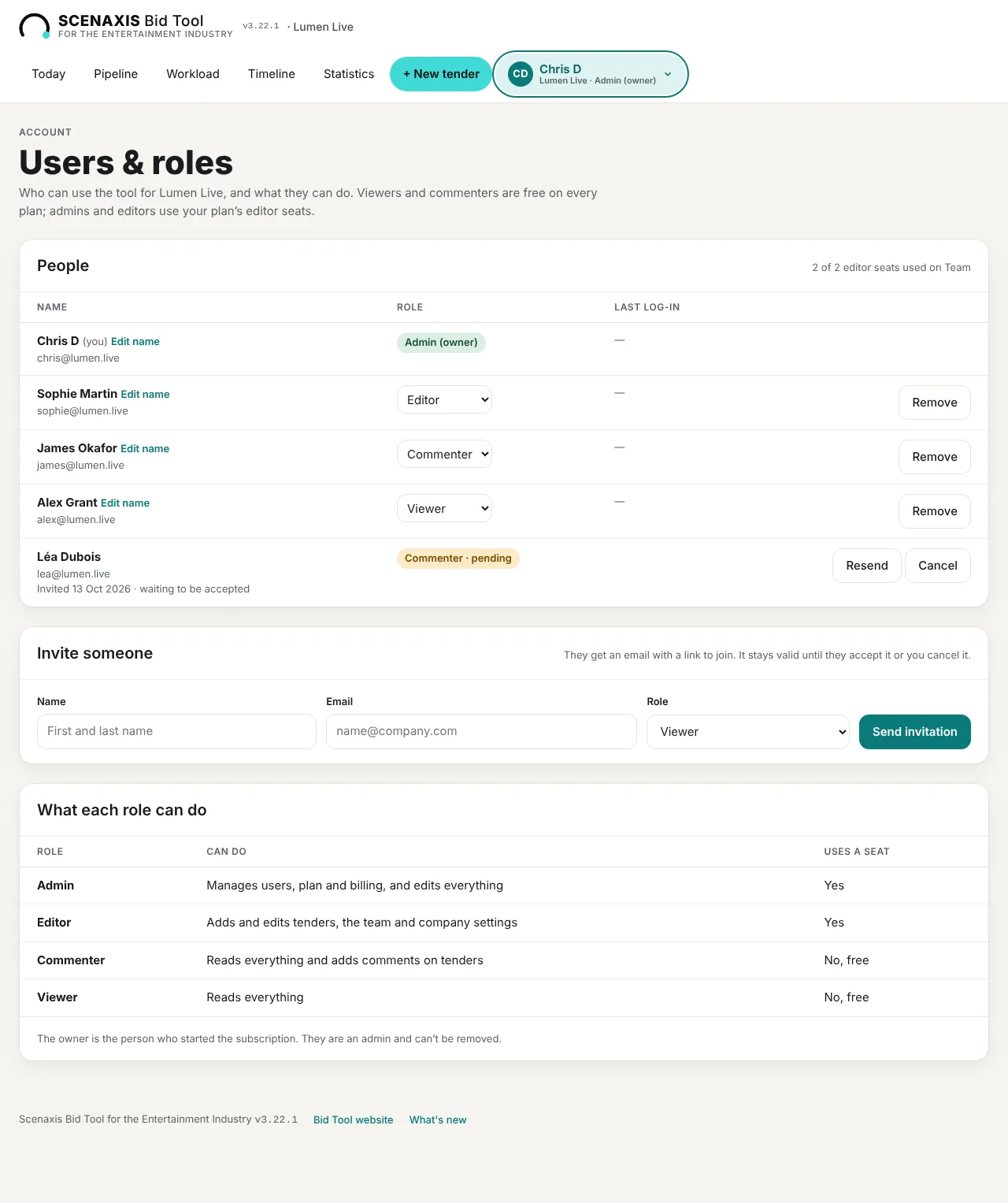
| Role | Can do | Uses an editor seat |
|---|---|---|
| Admin | Manages users, plan and billing, and edits everything | Yes |
| Editor | Adds and edits tenders, the team, documents and company settings | Yes |
| Commenter | Reads everything and adds comments on tenders | No, free |
| Viewer | Reads everything and downloads documents | No, free |
The owner is the person who started the subscription: an admin who can't be removed.
- Invite someone: enter their name and email, pick a role and click Send invitation. They get an email with a link to join. The invitation stays valid until they accept it or you cancel it; Resend sends it again.
- Change a role from the list next to their name. Edit name corrects how a name is shown.
- Remove takes someone out of the company. They lose access straight away.
- Seats: admins and editors use your plan's editor seats (1 on Solo, 2 on Team, unlimited on Agency); viewers and commenters are always free. On Team, when all seats are used, the tool offers to add a seat (£20 a month) when you invite another editor.
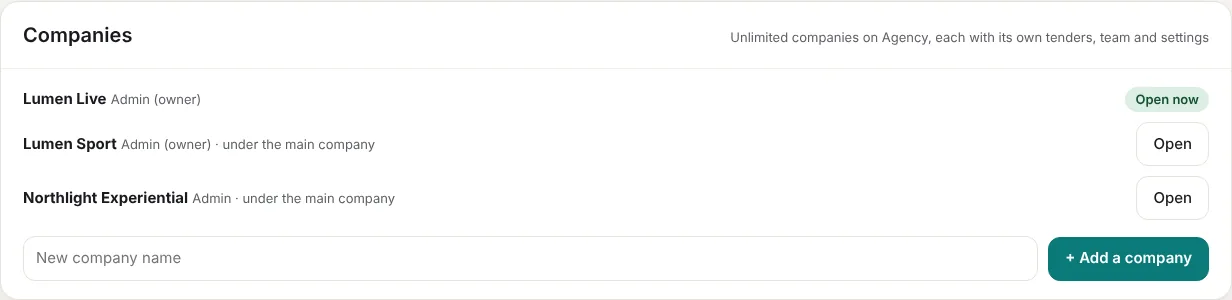
Several companies (Agency plan)
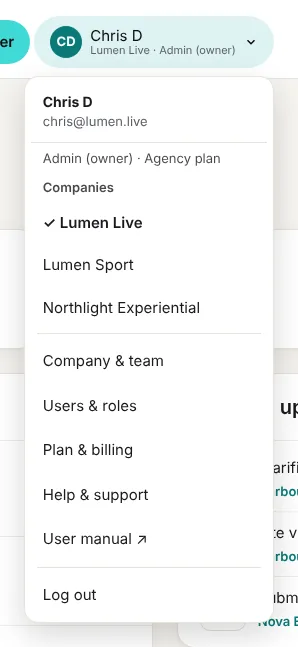
On the Agency plan, one subscription covers several companies or brands. Each has its own tenders, team, documents and settings. Add one under Account → Plan & billing → Companies, and switch between them from the Account menu.
Pitch budget rules
Three rules apply to every tender. Changes recalculate every tender straight away; there is nothing to regenerate.
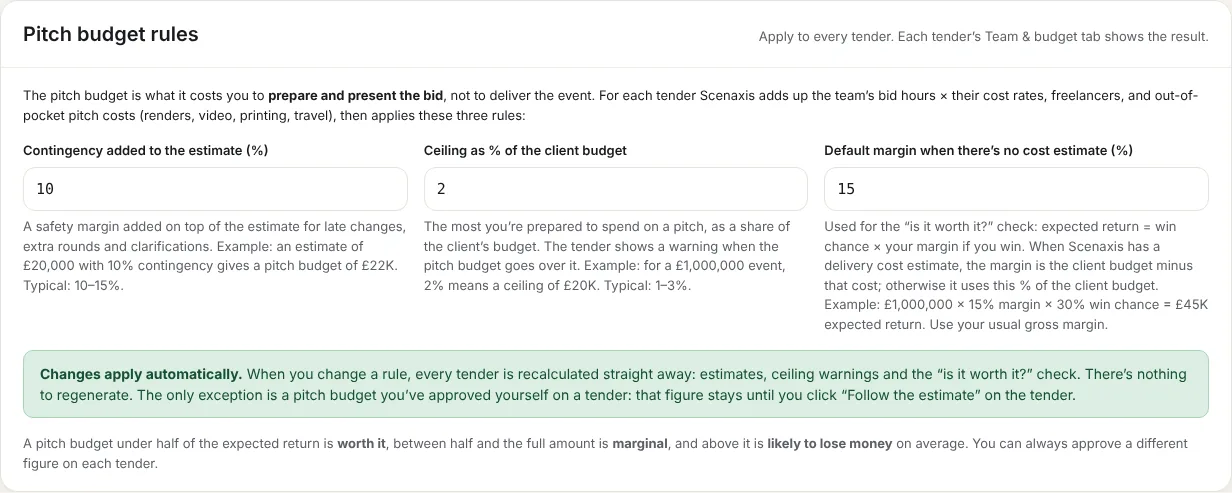
| Rule | What it does | Typical |
|---|---|---|
| Contingency (%) | Safety margin added to the estimate for late changes and extra rounds. £20,000 + 10% = £22,000 | 10–15% |
| Ceiling (% of client budget) | The most you will spend on a pitch. A warning shows above it. 2% of £1,000,000 = £20,000 | 1–3% |
| Default margin (%) | Used for the worth-it check when Scenaxis has no delivery cost estimate | 15% |
The only figure that does not follow a rule change is a pitch budget you have approved yourself on a tender.
Event types
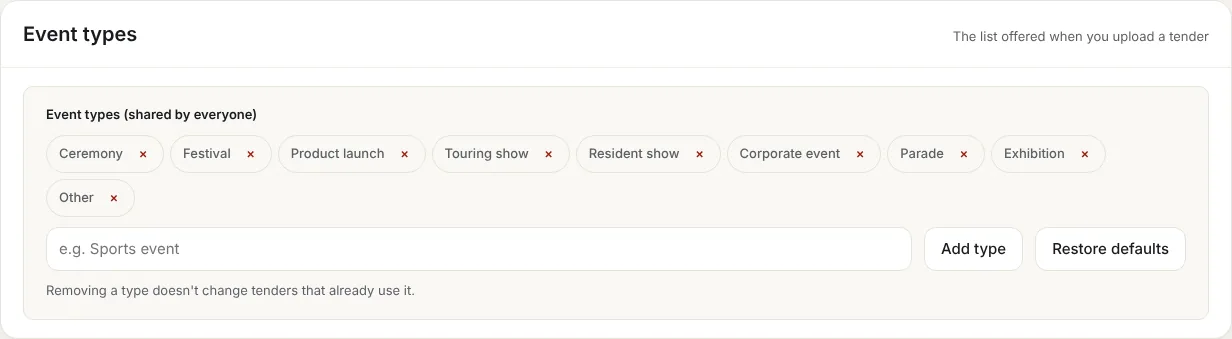
The list offered when you upload a tender (Ceremony, Festival, Product launch, Touring show and so on). Add your own types or remove ones you never use; Restore defaults brings the original list back. Removing a type does not change tenders that already use it.
4. The Today page
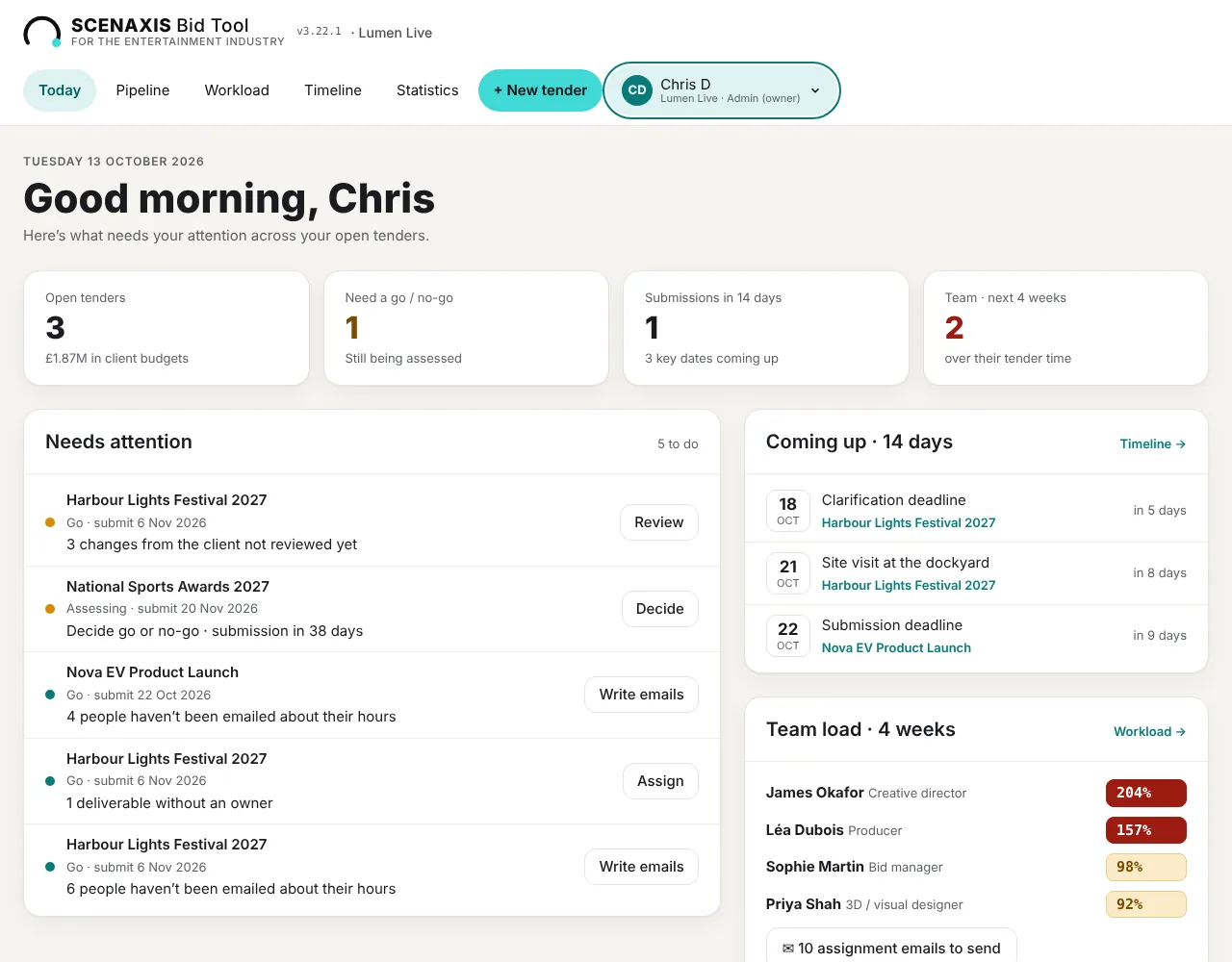
Today is the first page you see after logging in: one list of everything that needs action across your open tenders (Assessing and Go), each with a button that takes you straight to the right place.
Summary cards
Four cards at the top. Click any card to open the page behind it.
| Card | Shows | Opens |
|---|---|---|
| Open tenders | Number of open tenders and their total client budgets | Pipeline |
| Need a go / no-go | Tenders still being assessed | Pipeline |
| Submissions in 14 days | Submission deadlines in the next two weeks | Timeline |
| Team · next 4 weeks | People over their tender time | Workload |
Needs attention
Each line shows the tender, its status and submission date, what is missing, and an action button. A coloured dot shows how urgent it is: red = act now, amber = soon, teal = for information. Red items are listed first.
| Item | When it appears | Button takes you to |
|---|---|---|
| Client budget is missing | The tender has no client budget | The budget field on the tender |
| Decide go or no-go | The tender is still Assessing (red within 14 days of submission) | The Bid decision on the tender |
| Changes from the client not reviewed | A Q&A, clarification or addendum brought changes nobody has ticked as reviewed | The change register (section 6) |
| No exchange rate | The tender is in another currency and has no rate | The exchange rate field |
| No pitch lead | The tender is Go and nobody leads it, so no reminders are sent | The pitch lead field |
| Hours not assigned | A Go tender has bid hours with nobody assigned | Team & budget tab |
| Deliverables overdue / due in 3 days | Open deliverables past or near their due date | Deliverables tab |
| Deliverables without an owner | A Go tender has deliverables nobody is responsible for | Deliverables tab |
| People not emailed | Assignments that haven't been emailed yet | The emails window (section 9) |
When nothing needs attention, the panel says so.
Coming up · 14 days
Every key date in the next 14 days across open tenders: submissions, clarification deadlines, site visits, presentations and deliverable due dates. Dates within 2 days are highlighted. Click a tender name to open it, or Timeline → for the full calendar.
Team load · 4 weeks
People at 85% or more of their tender time in any of the next 4 weeks, busiest first, with their peak percentage. Click Workload → to rebalance. If assignment emails are waiting, a button here opens them.
5. Adding a tender
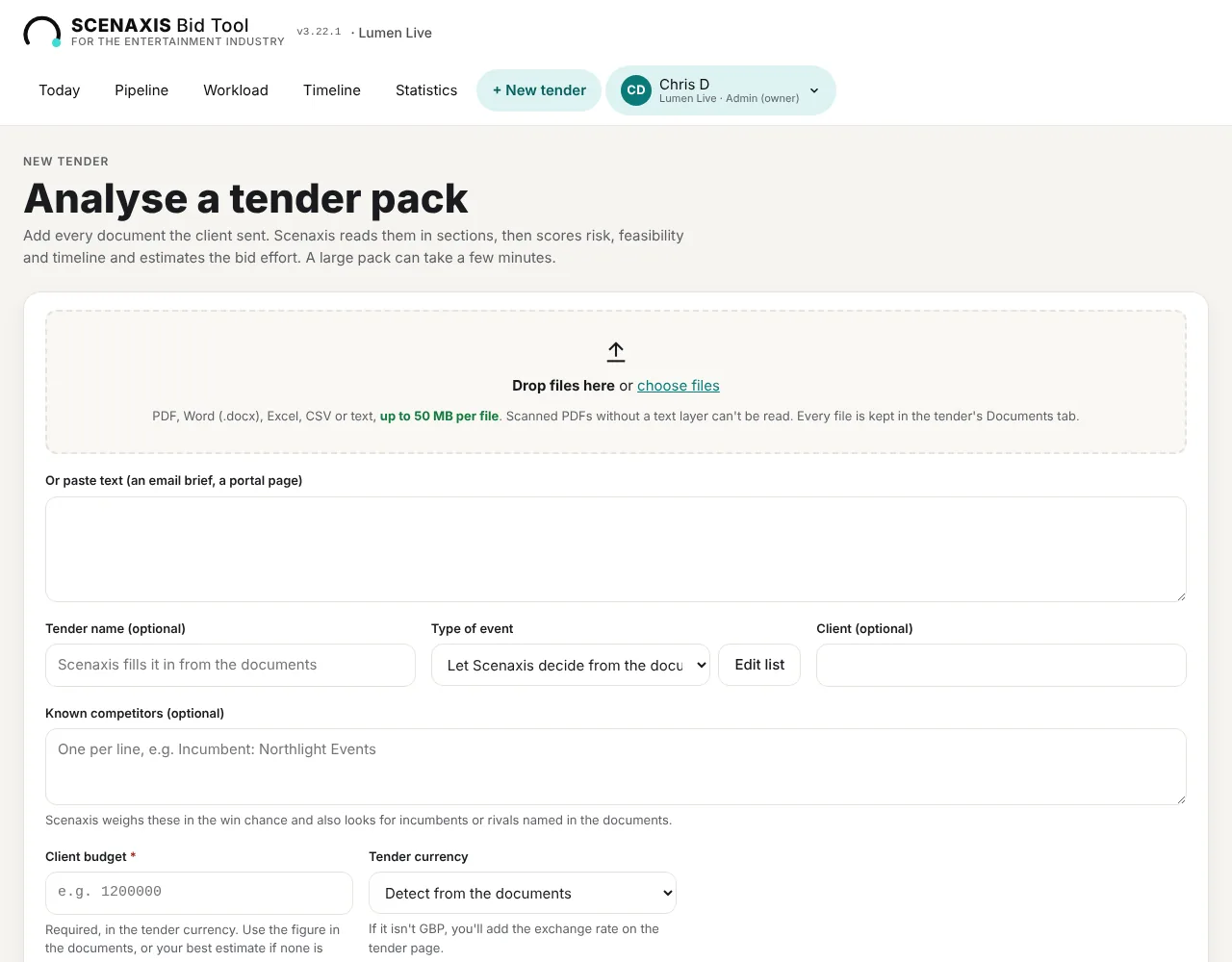
Click + New tender, add every document the client sent, enter the client budget and click Analyse tender. A typical pack takes 1–3 minutes; a large one a few minutes more. Editors and admins can add tenders.
Step by step
- Add the documents. Drag files onto the drop area or click choose files. Accepted: PDF, Word (.docx), Excel, CSV and text, up to 50 MB per file. Add them all at once: invitation to tender, brief, specification, draft contract, pricing schedule, clarifications.
- Or paste text. For an email brief or a procurement portal page, paste the text in the box below the drop area. You can combine files and pasted text.
- Tender name (optional). Leave blank and Scenaxis takes it from the documents.
- Type of event. Leave “Let Scenaxis decide from the documents” or pick one. Edit list changes the types for your company.
- Client (optional). Taken from the documents if left blank.
- Known competitors (optional). One per line, e.g. “Incumbent: Northlight Events”. Scenaxis weighs them in the win chance and also looks for incumbents named in the documents.
- Client budget (required). In the tender's currency. Use the figure in the documents, or your best estimate if none is given.
- Tender currency. “Detect from the documents” or pick one. If it differs from your company currency, you add an exchange rate on the tender page (section 11).
- Notes for Scenaxis (optional). Anything the documents don't say: “we delivered this event in 2023”, “client relationship is strong”.
- Click Analyse tender. Keep the page open until the tender opens.
What the analysis produces
- Name, client, type, submission date, event date and the budget stated in the documents
- A tender summary: one-page overview and full digest, each point with its source (section 6)
- Six feasibility scores with the evidence for each
- A risk register with the clause each risk comes from
- A bid timeline (from now to submission) and a delivery timeline (award to event)
- The roles and hours needed to write the bid, and a delivery cost estimate
- Clarification questions to ask the client
- A deliverables list: everything the response must include
- A win chance and the Go / Review / No-go recommendation
- The documents themselves, kept in the tender's Documents tab
Good to know
- Scanned PDFs without a text layer can't be read. Run them through OCR first, or paste the text.
- Files over 50 MB are still read and analysed but not kept; the drop area flags them before you start.
- Budget differences. If the documents state a different budget from the one you typed, the tender page shows “Documents say …” under the budget so you can check.
- Monthly limit. Each company can run 30 (Solo), 100 (Team) or 300 (Agency) analyses a month. A new tender, with its summary, counts as one; so does an update from new documents. The count resets on the 1st.
- Analyses are included in the subscription; there is no extra charge per tender.
6. The tender page
Each tender has one page: key facts and next steps at the top, Scenaxis's recommendation, then ten tabs. Open it from Today, the Pipeline or any tender name.
Header and key facts
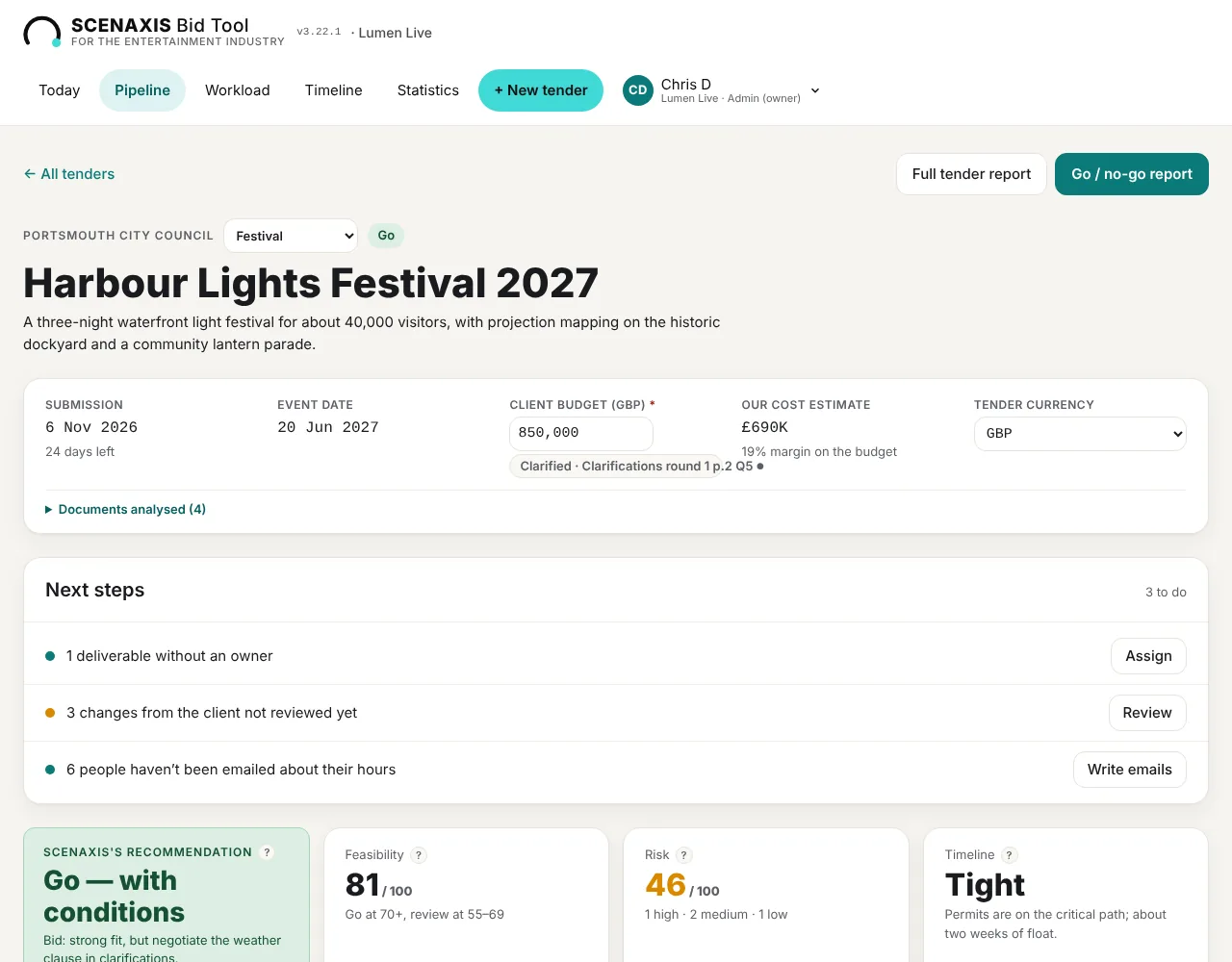
- ← All tenders returns to the Pipeline. Full tender report and Go / no-go report open the reports (section 10).
- Above the name: the client, the event type (change it from the list) and the current status.
- The short description below the name comes from the documents.
- Key facts panel: submission date and days left (red within 7 days), event date, client budget (required, edit in place), Scenaxis's delivery cost estimate and the margin it leaves, and the tender currency. A tender in another currency also shows the exchange rate (section 11).
- Change labels. When a Q&A or addendum moved the submission or event date, or clarified the budget, a label shows it with the reference, for example “Changed · Q&A log p.1 Q1”. Click it to open that change in the change register.
- Documents analysed lists every file read, with page counts, and links to the Documents tab.

Next steps
The same checks as the Today page (section 4), for this tender only: missing budget, decision, changes not reviewed, pitch lead, exchange rate, unassigned hours, deliverables and emails. Each has a button that takes you to the field. “All set” means nothing is outstanding.
Recommendation, feasibility, risk and timeline

| Card | How it is worked out |
|---|---|
| Feasibility (0–100) | Six criteria scored 1–5, weighted, scaled to 100 |
| Risk (0–100) | Each High risk adds 22, Medium 10, Low 4 (max 100). Higher is worse |
| Timeline | OK, Tight, At risk or Not feasible: can you prepare the bid and deliver the event in time? |
| Recommendation | See the rules below |
The recommendation follows fixed rules:
- Timeline Not feasible → No-go.
- Feasibility 70 or more → Go, or Go — with conditions when there is at least one High risk (resolve it through clarification questions).
- Feasibility 55–69 → Review: borderline, decide at your bid board.
- Below 55 → No-go.
Overview tab
Bid decision. Your decision always wins over the recommendation. Click Assessing, Go, No-go, Submitted, Won or Lost. Add a reason if you like; the date of the last change is shown.
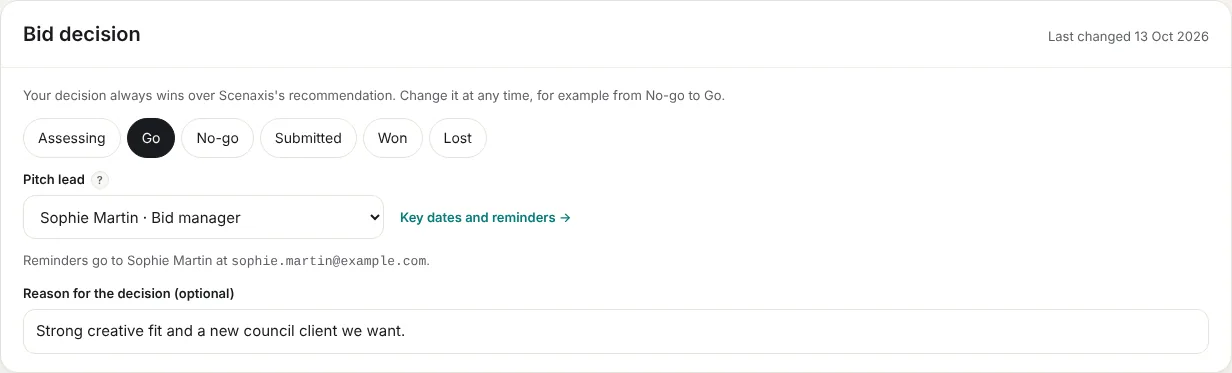
Pitch lead. Choose who leads the response. They receive email reminders before key dates (section 9). Pick + Add a person… to add someone new with name, role and email; they join the bid team automatically.
Feasibility. The six criteria, each with Scenaxis's evidence from the documents and a 1–5 score. Click a different number to change a score; the feasibility score and the recommendation update immediately.
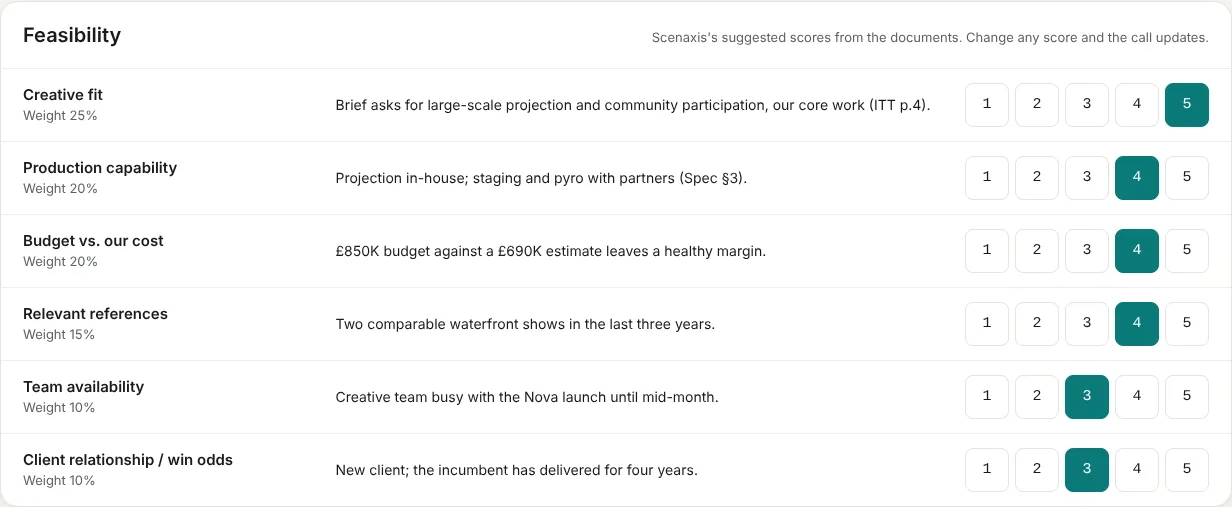
| Criterion | Weight |
|---|---|
| Creative fit | 25% |
| Production capability | 20% |
| Budget vs. our cost | 20% |
| Relevant references | 15% |
| Team availability | 10% |
| Client relationship / win odds | 10% |
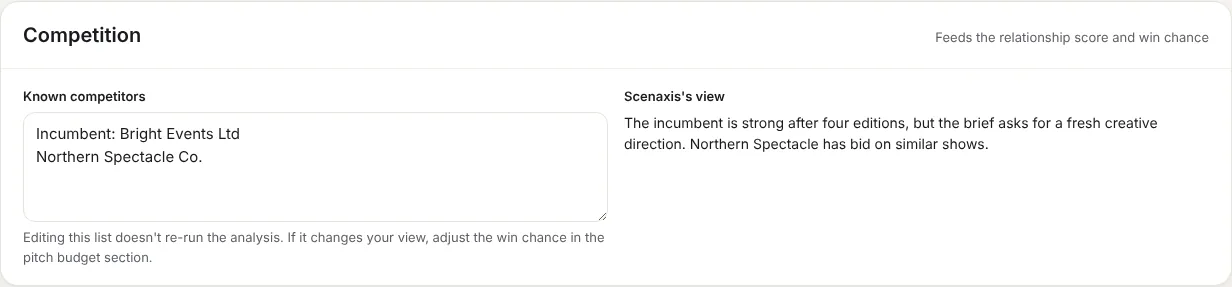
Competition. Your list of known competitors (edit in place) and Scenaxis's view of them. Editing the list doesn't re-run the analysis; adjust the win chance in the pitch budget if your view changes.
Clarification questions to send the client, with a Copy button. Deliverables shows progress and the first open items; Open the list goes to the Deliverables tab.
Summary tab
The tender in a few minutes' reading, so the whole team understands it without opening every document.
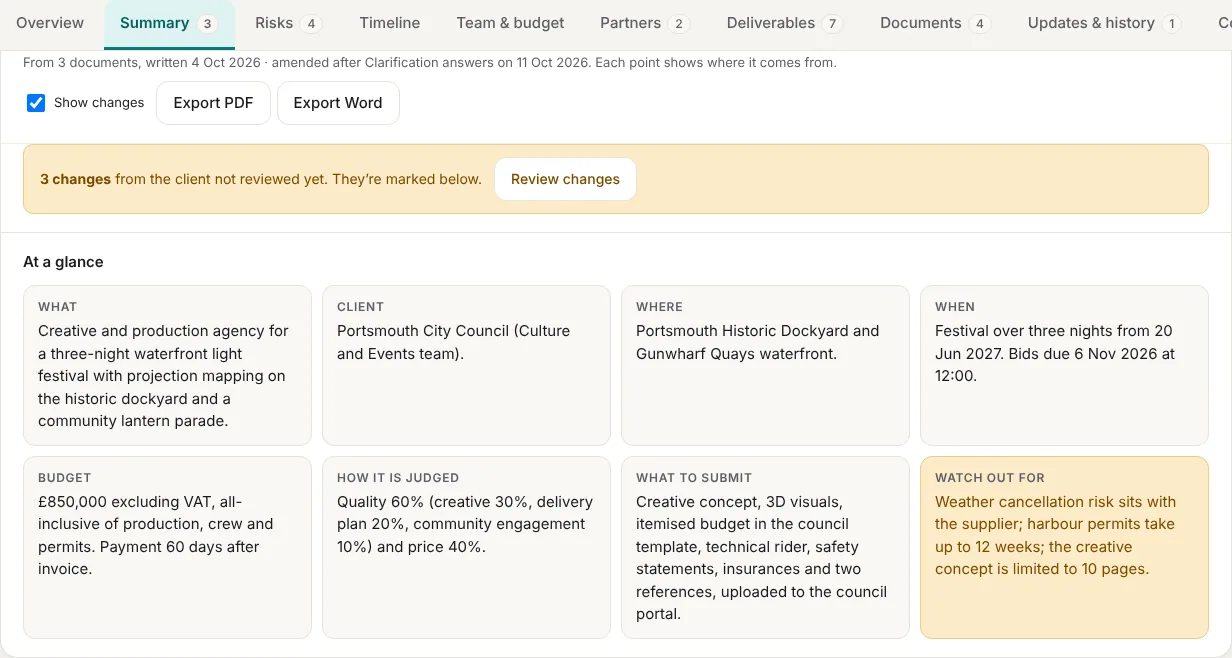
- At a glance: what, client, where, when, budget, how bids are judged, what to submit, and what to watch out for (highlighted).
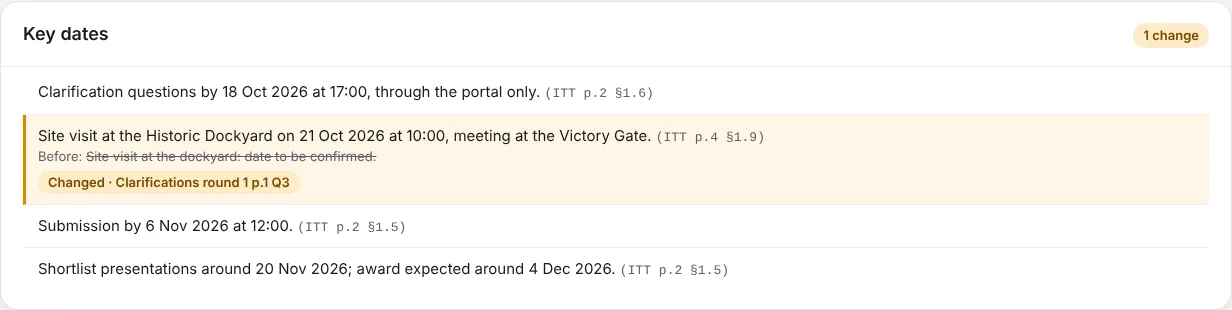
- The full digest, in sections: overview and objectives, scope of work, key dates, budget and payment terms, how to submit, how bids are judged, eligibility and mandatory requirements, contract terms to note, contacts and communication rules. Each point ends with its source, for example “(ITT p.6 §2.3)”.
- Changes are marked. After a Q&A, clarification or addendum, points are marked New, Changed, Removed or Clarified, with the old wording struck through and the reference of the change. A banner shows how many changes are not reviewed yet; Review changes opens the change register.
- Show changes switches the markings on or off.
- Export PDF and Export Word download the summary, with or without the changes (and the change register at the end).
Tenders analysed before version 3.20 don't have a summary yet: on the Summary tab, add the tender documents again and click Create the summary. Nothing else on the tender changes, and the files are kept in the Documents tab.
Risks tab
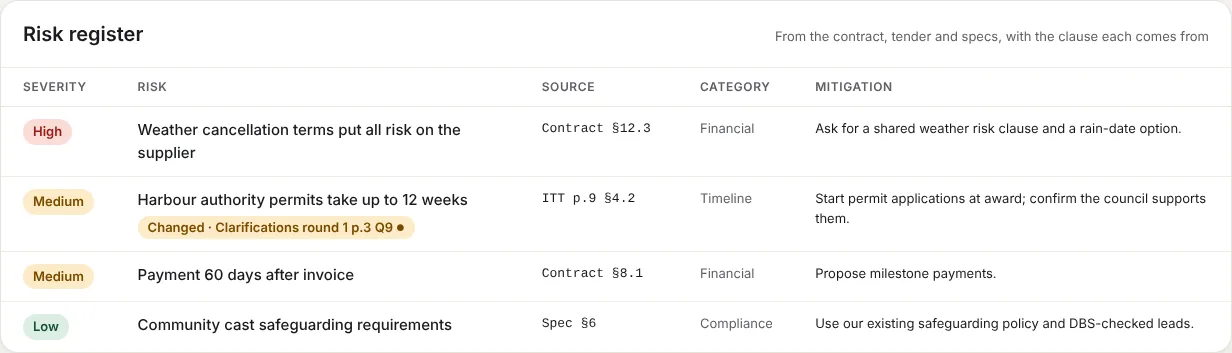
The risk register: severity, the risk, the source clause (e.g. “Contract §12.3”), category (Financial, Timeline, Compliance…) and a suggested mitigation. Use it to write clarification questions and your risk section. A risk affected by a change shows its change label.
Timeline tab
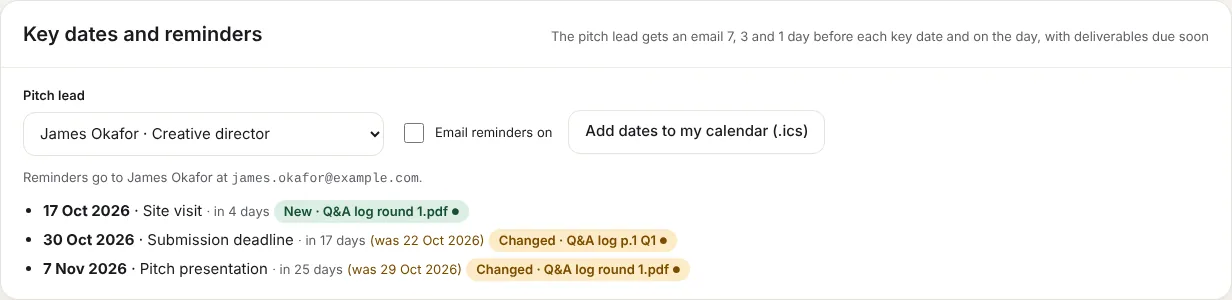
Key dates and reminders. Every deadline and milestone with days to go, the pitch lead, the Email reminders switch and Add dates to my calendar (.ics). A date that moved shows “(was 22 Oct 2026)” and its change label.
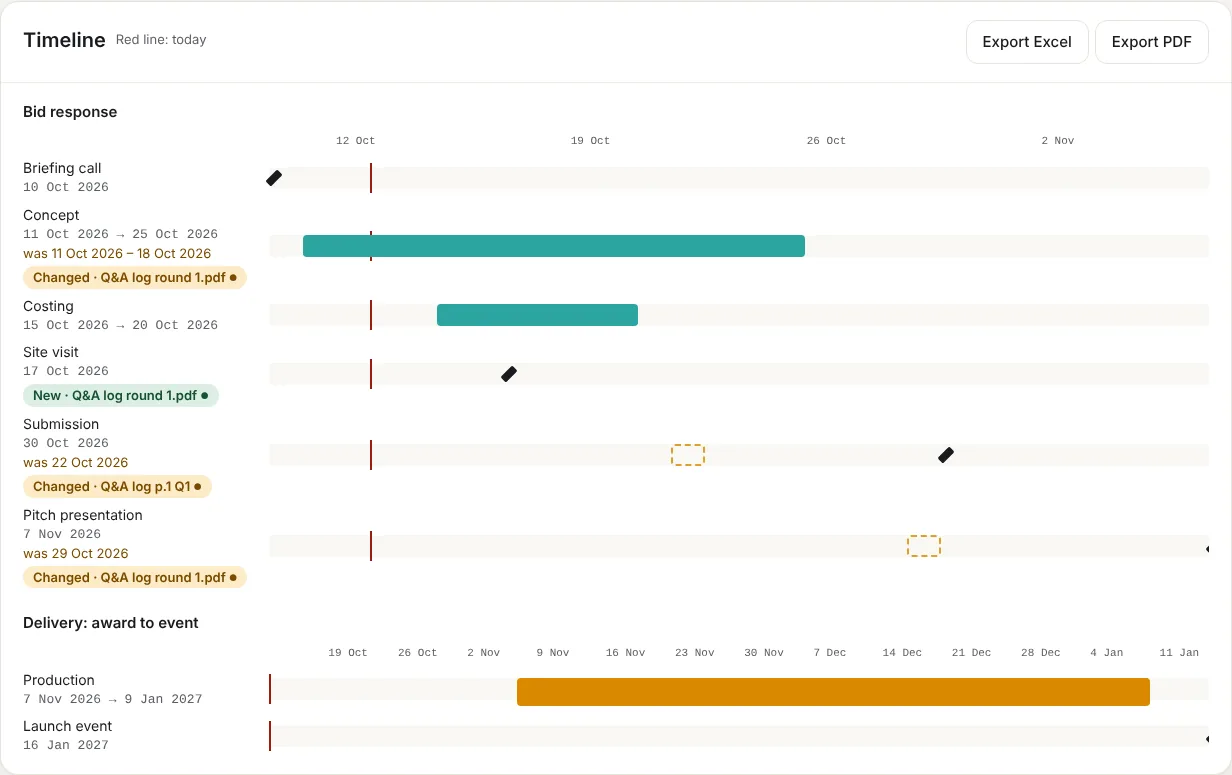
Timeline. Two Gantt charts: Bid response (from now to submission) and Delivery (award to event). Shaded bars are working phases, diamonds are deadlines and meetings, the red line is today. After an update, a bar that moved or is new is marked Changed or New with the reference and the previous date, and its old position shows as a dashed outline. Export Excel and Export PDF download it.
Team & budget tab
This tab decides who works on the bid, for how many hours, and what the pitch will cost.
Team emails. A box at the top shows how many people haven't been told about their hours on this tender, with a button to write the emails (section 9).
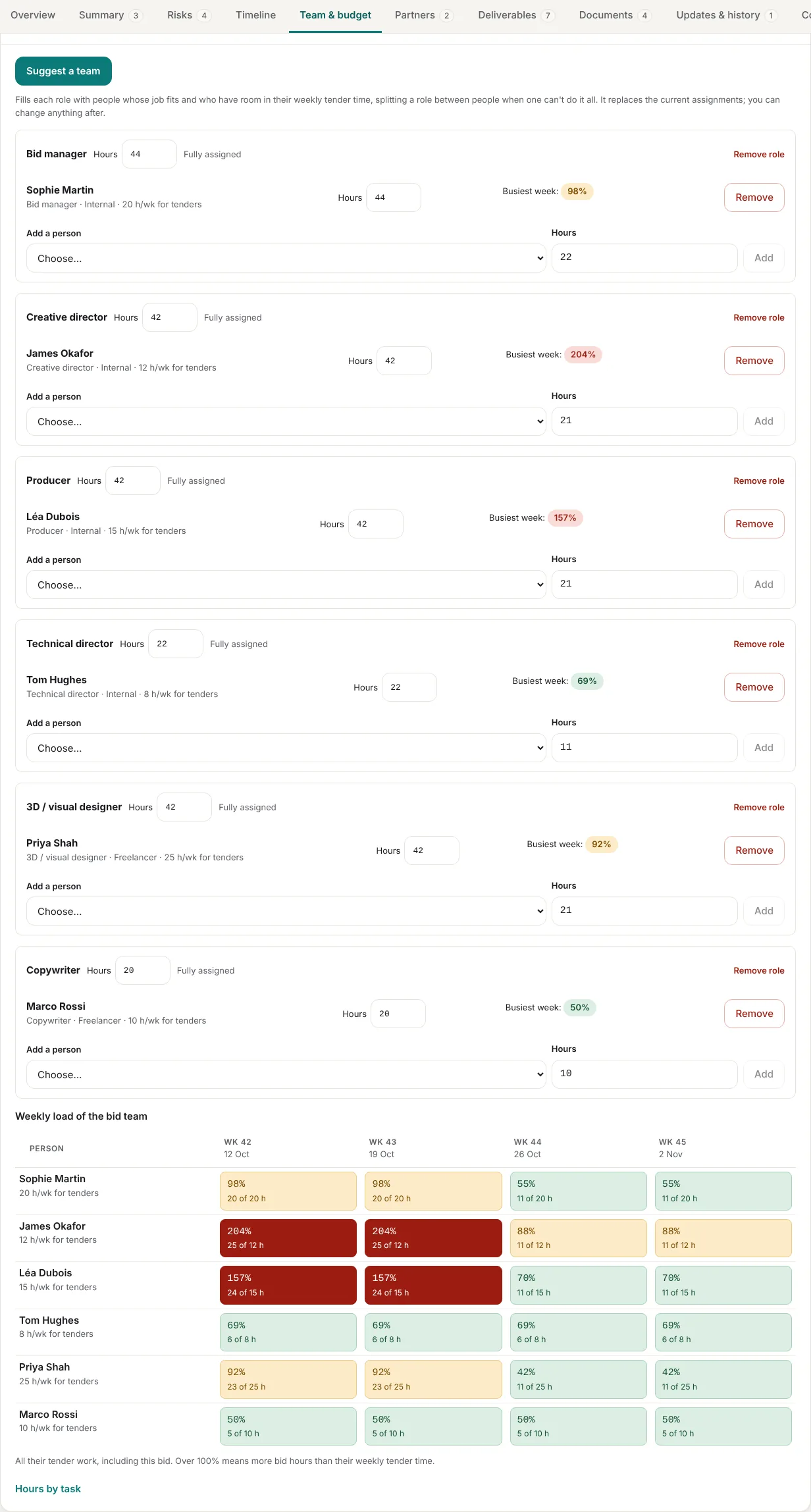
Bid team & resources. One block per role Scenaxis estimated (Bid manager, Creative director, Producer…), with its total hours.
- Suggest a team fills each role with people whose job fits and who have room in their tender time, splitting a role between two people when one can't do it all. It replaces the current assignments; you can change anything afterwards.
- Under each role: the people assigned, their hours, and their busiest week as a % of their tender time (red above 100%).
- Add a person: choose from the list (people whose role matches come first) or + New person…, enter the hours and click Add. A new person can be kept for future tenders or added to the company team.
- Change a role's total hours, Remove a person, or Remove role. Add a role that Scenaxis didn't suggest at the bottom.
- Hours are spread evenly from this week to the submission date unless you set a schedule on the Workload page (section 8).
Pitch budget. Calculated automatically; every change to hours, rates or costs updates it.
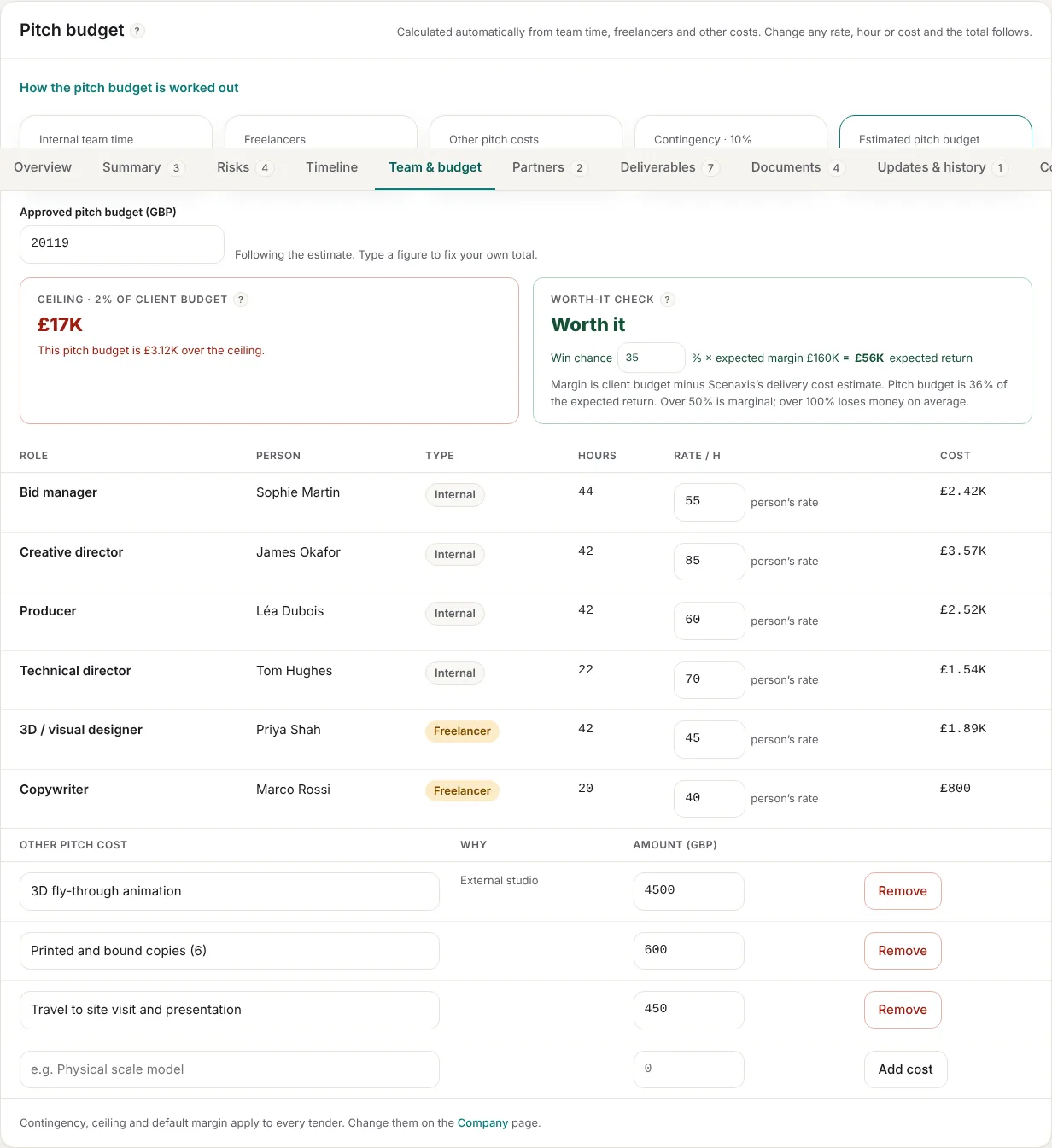
| Part | What it is |
|---|---|
| Internal team time | Internal people's hours × their cost rate |
| Freelancers | Freelancers' hours × their rate |
| Other pitch costs | Out-of-pocket items: renders, video, printing, travel. Add lines with a reason and amount |
| Contingency | The company % added on top (section 3) |
| Estimated pitch budget | The sum of the above |
| Approved pitch budget | Leave blank to follow the estimate, or type your own figure to fix it |
| Ceiling | The company % of the client budget, with a warning when the pitch budget is over it |
| Worth-it check | Win chance × expected margin = expected return, compared with the pitch budget |
The worth-it check: under half of the expected return is Worth it, between half and the full amount is Marginal, above it is likely to lose money on average. The expected margin is the client budget minus Scenaxis's delivery cost estimate, or the company default margin when there is no estimate. Change the win chance % to test scenarios. In the cost table you can override a person's rate for this tender only.
Partners tab
Companies you bid with on this tender: AV suppliers, pyrotechnics, staging, catering and so on.
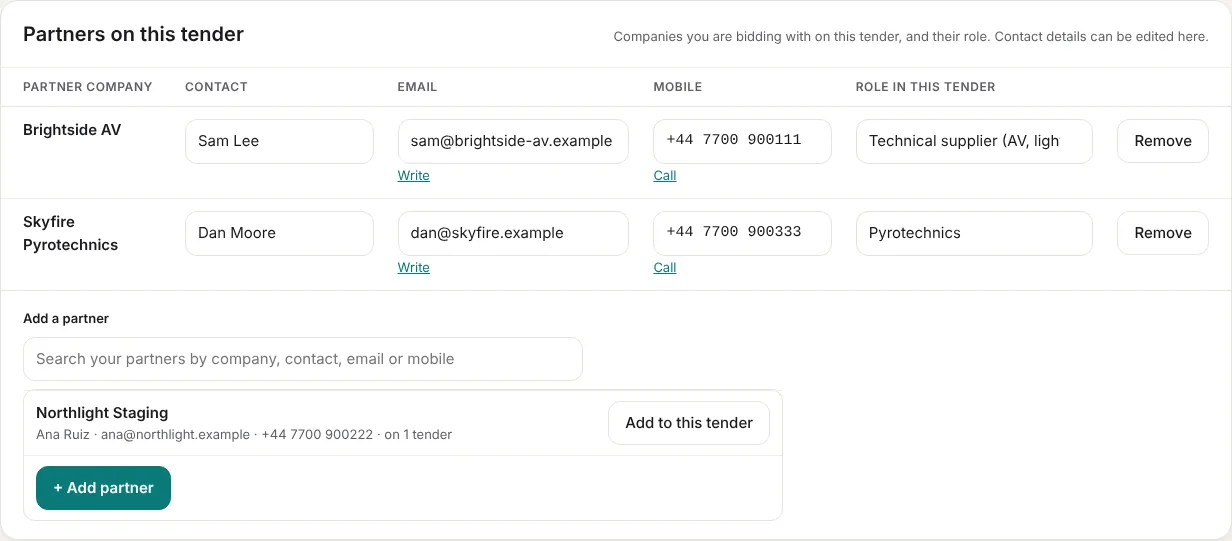
- Each partner shows company, contact, email (Write opens your email), mobile (Call) and their role in this tender. Edit any field in place; Remove takes them off this tender only.
- Add a partner searches the partners you have used before, with their contact details and how many tenders they are on. Click Add to this tender.
- Not in the list? Click + Add partner and enter company, contact, email, mobile and role. They are kept for your future tenders.
- A partner's role can differ from one tender to the next. Your partner list is private to your company.
Deliverables tab
Everything the response must include, taken from the client's documents: forms, concepts, budgets, method statements, presentations, site-visit registrations.
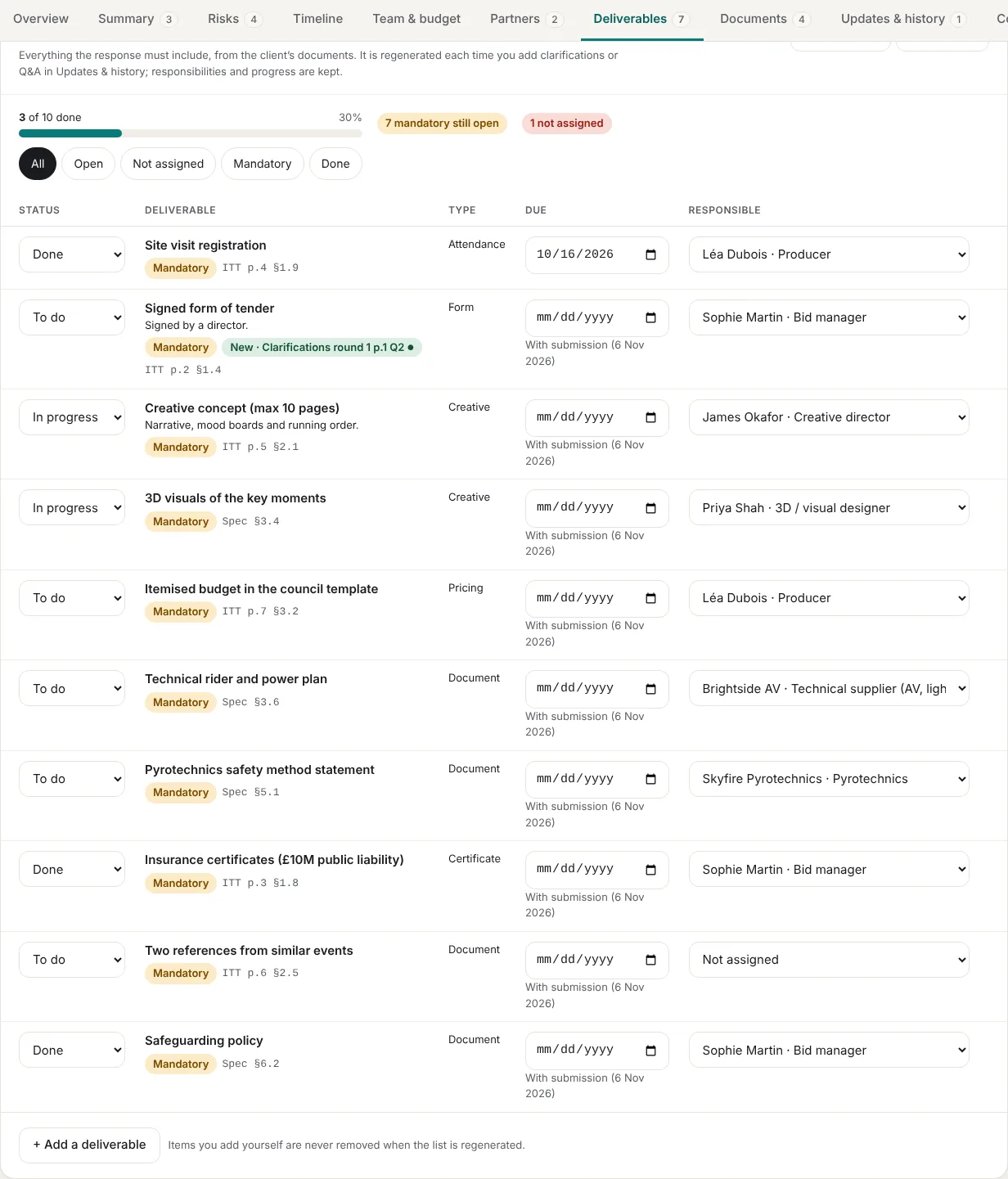
- Progress at the top: items done, % complete, mandatory items still open, items not assigned.
- Filters: All, Open, Not assigned, Mandatory, Done.
- For each item: status (To do, In progress, Done, Not needed), the deliverable with its details and source clause, type, due date (or “with submission”) and responsible — any team member or partner.
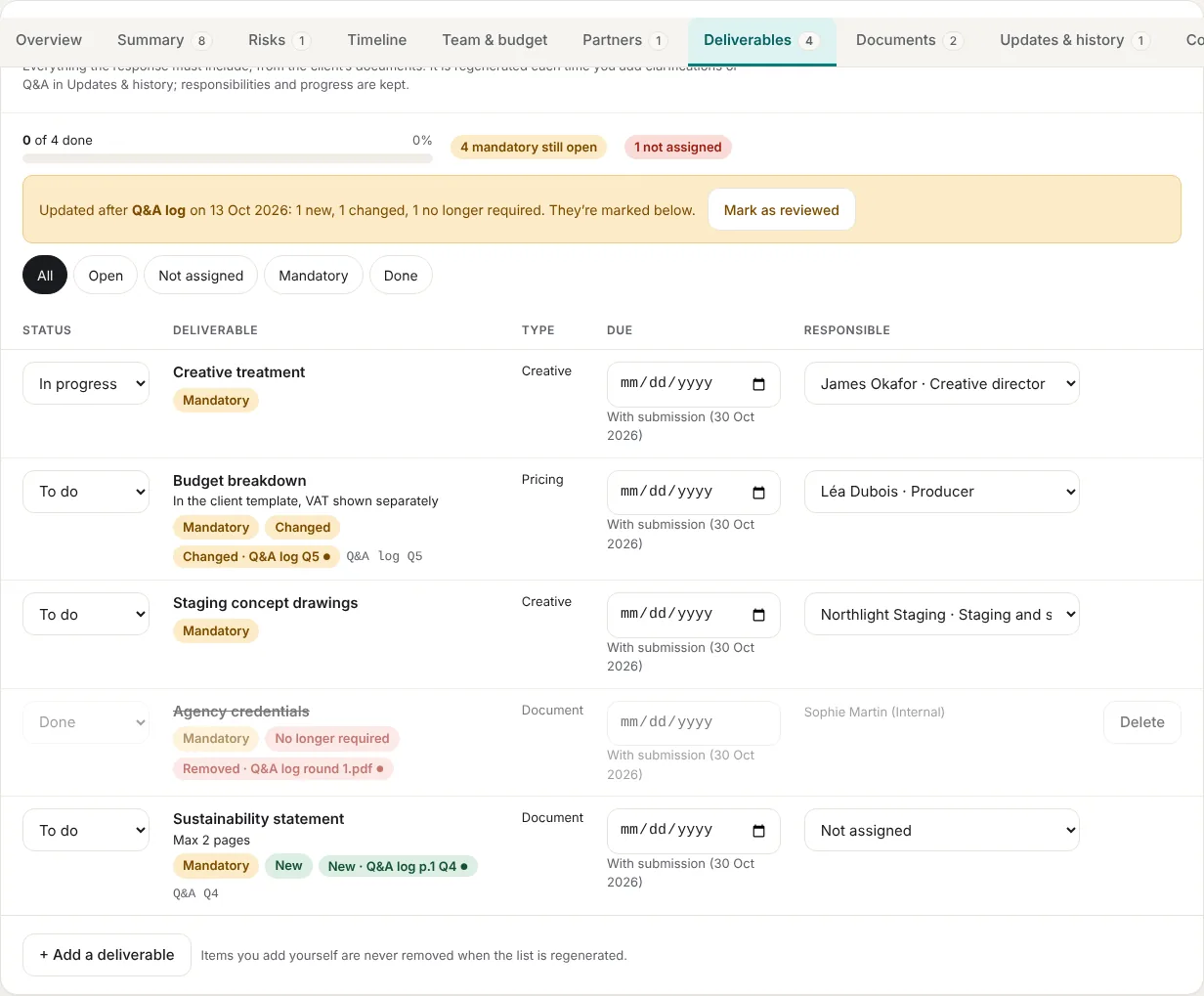
- The list is regenerated each time you add clarifications, Q&A or addenda (Updates & history). New, changed and no-longer-required items are marked, each with a label giving the reference of the change; responsibilities and progress you set are kept. Mark as reviewed clears the markings.
- + Add a deliverable adds your own items; they are never removed when the list is regenerated.
- Export Excel or Export PDF to share with the team or partners.
Documents tab
Every file added to the tender, kept for your company and downloadable at any time.
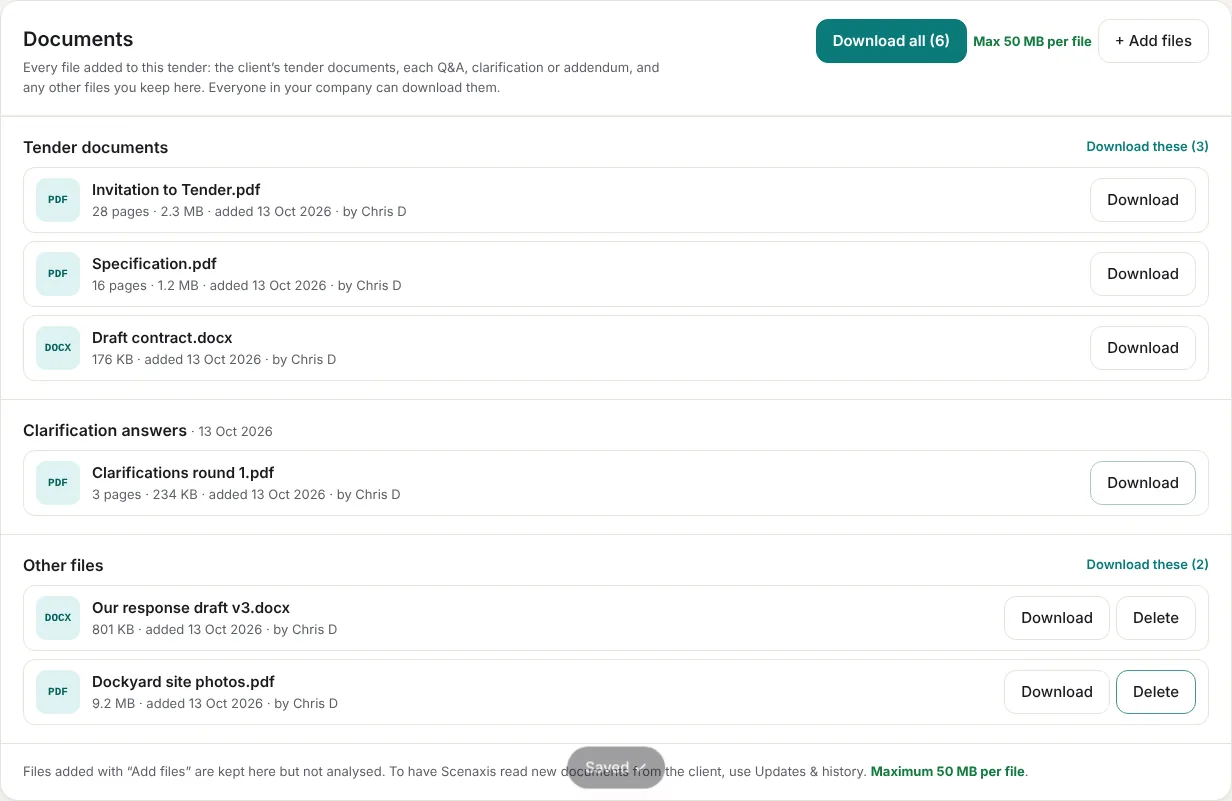
- Groups: Tender documents (from the first analysis), then each Q&A, clarification or addendum with its date, then Issued reports (a copy of each report version), then Other files. Pasted text is kept as a .txt file.
- Download a file, Download these for a group, or Download all: a zip with one folder per group.
- + Add files keeps other files with the tender (your draft response, site photos, signed forms). They are not analysed and can be deleted. Maximum 50 MB per file.
- Documents added before version 3.22, and the sample data, show “Not stored”: click Add the file to store your copy.
- Everyone in the company can download; editors and admins can add and delete. Deleting the tender deletes its files.
Updates & history tab
Use this whenever the client sends something new during the pitch.
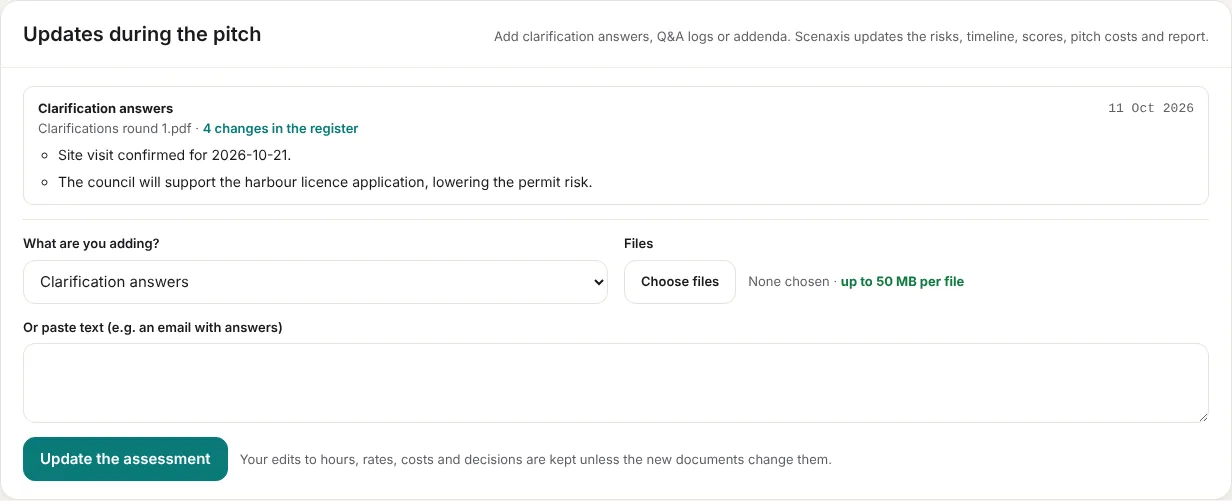
- Choose what you are adding: Clarification answers, Q&A log, Addendum / revised documents, Briefing or meeting notes, or Other.
- Add the files (up to 50 MB per file), or paste the text (e.g. an email with answers).
- Click Update the assessment. Scenaxis updates the risks, timeline, scores, pitch costs, deliverables, the tender summary and the report, and lists every change.
Your own edits to hours, rates, costs and decisions are kept unless the new documents change them. Each update is logged with a short summary and the number of changes; the files are kept in the Documents tab.
Change register. Every change from Q&A, clarifications and addenda, newest first.
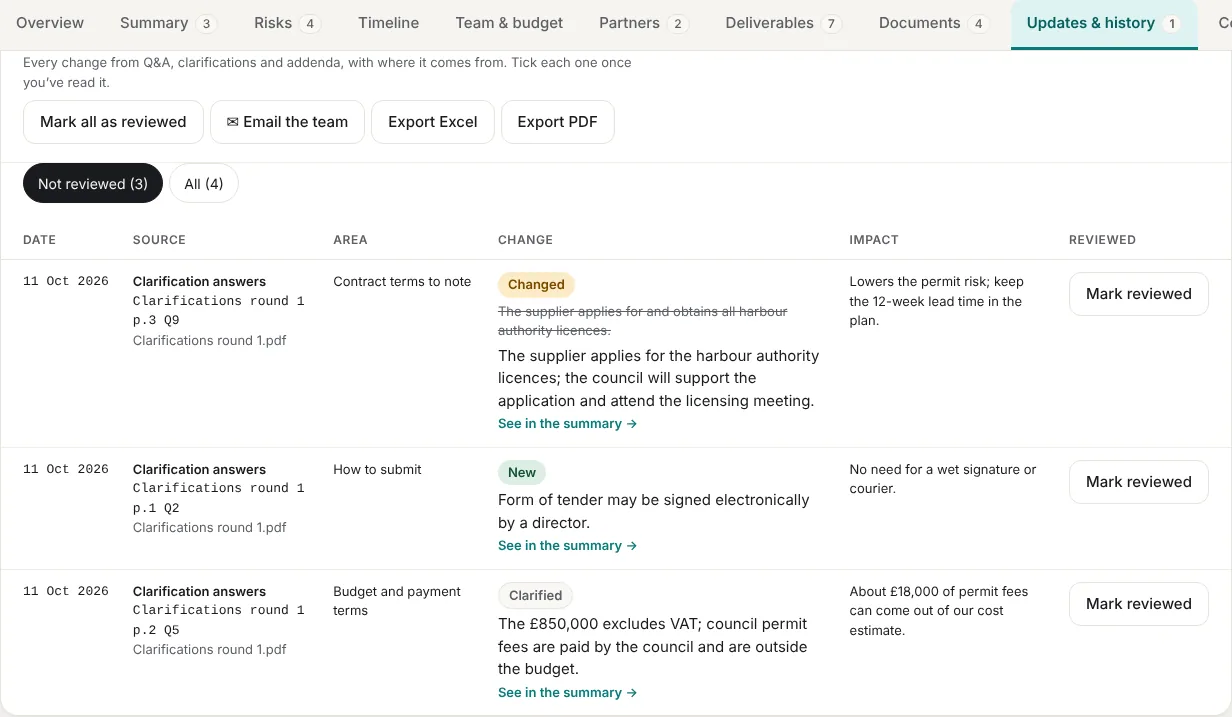
| Column | What it shows |
|---|---|
| Date | When the update was run |
| Source | The type of update, the exact reference (e.g. “Clarifications round 1 p.1 Q3”) and the documents |
| Area | Which part of the tender: key dates, budget, how to submit, deliverables, risks… |
| Change | New, Changed, Removed or Clarified, with the old wording struck through and the new wording; See in the summary → jumps to the point |
| Impact | What it means for your bid |
| Reviewed | Mark reviewed records who ticked it and when; Undo reverses it |
- Not reviewed / All filters the list. Mark all as reviewed ticks every change at once.
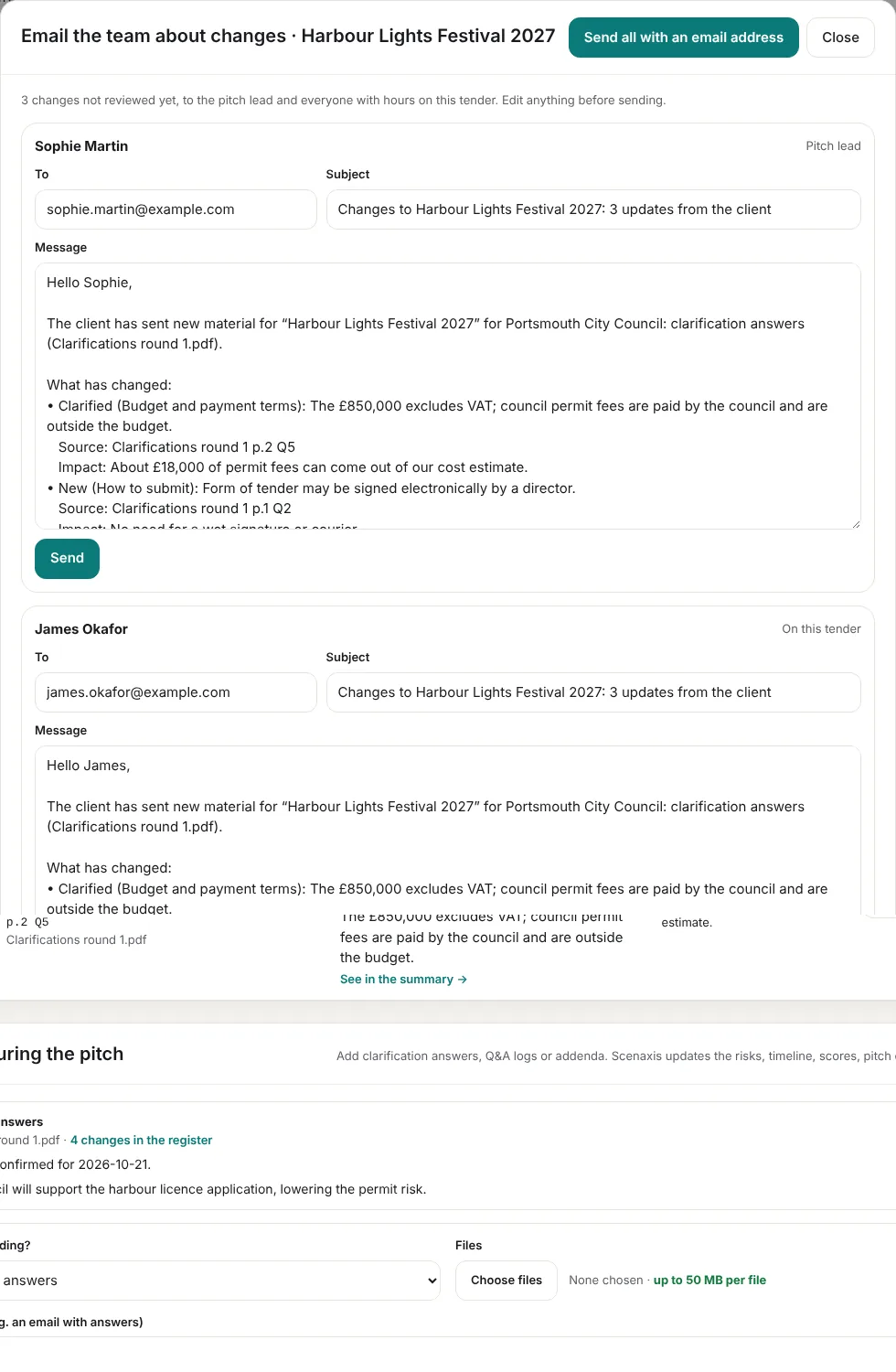
- ✉ Email the team writes one email per person — the pitch lead and everyone with hours on the tender — listing the changes not reviewed yet (moved dates first), with where each comes from. Edit them, then click Send or Send all with an email address.
- Export Excel and Export PDF download the register.
Version history. A copy is saved of the first assessment, every update from new documents, and any version you save with Save version. Compare any version with the current one, or restore it.
Comments tab
A place for the team's notes, questions and decisions on the tender. Everyone in the company can read them; commenters, editors and admins can write.
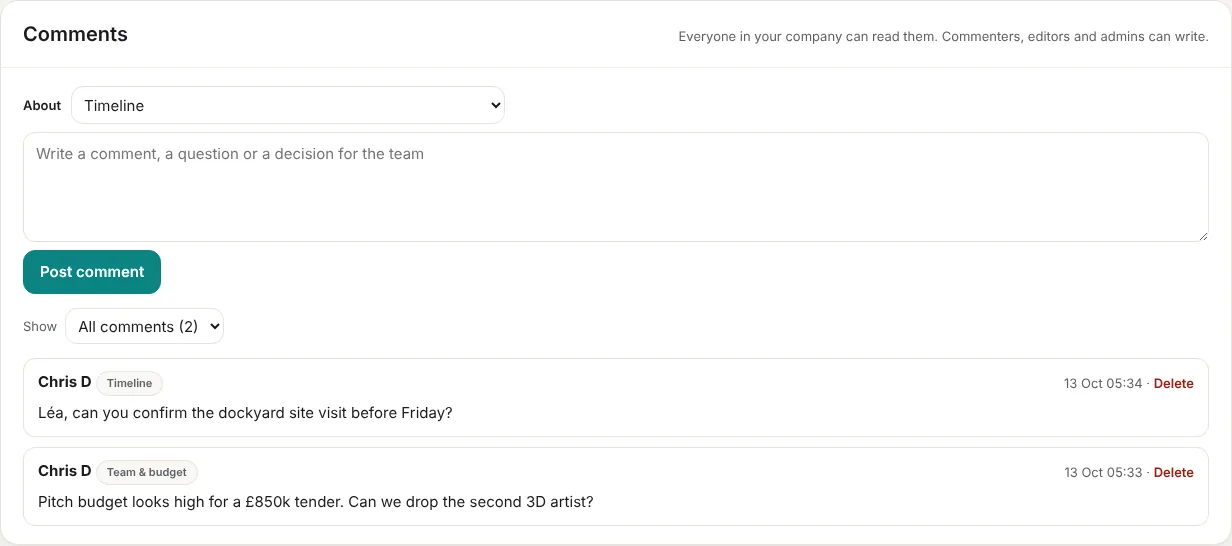
- Choose what the comment is About (General, Bid decision, Risks, Timeline, Team & budget, Partners, Deliverables, or a specific deliverable), write it and click Post comment.
- Show filters the comments by topic. You can delete your own comments; admins can delete any.
Deleting a tender
Delete tender at the bottom of the page removes it for everyone in your company, with its history and its documents. You are asked to confirm. This can't be undone, so download a backup and the documents first if unsure (section 12).
7. The Pipeline
The Pipeline lists every tender with its scores, budgets, Scenaxis's call and your status, above six summary cards. Use it for bid board meetings and to update several tenders quickly.
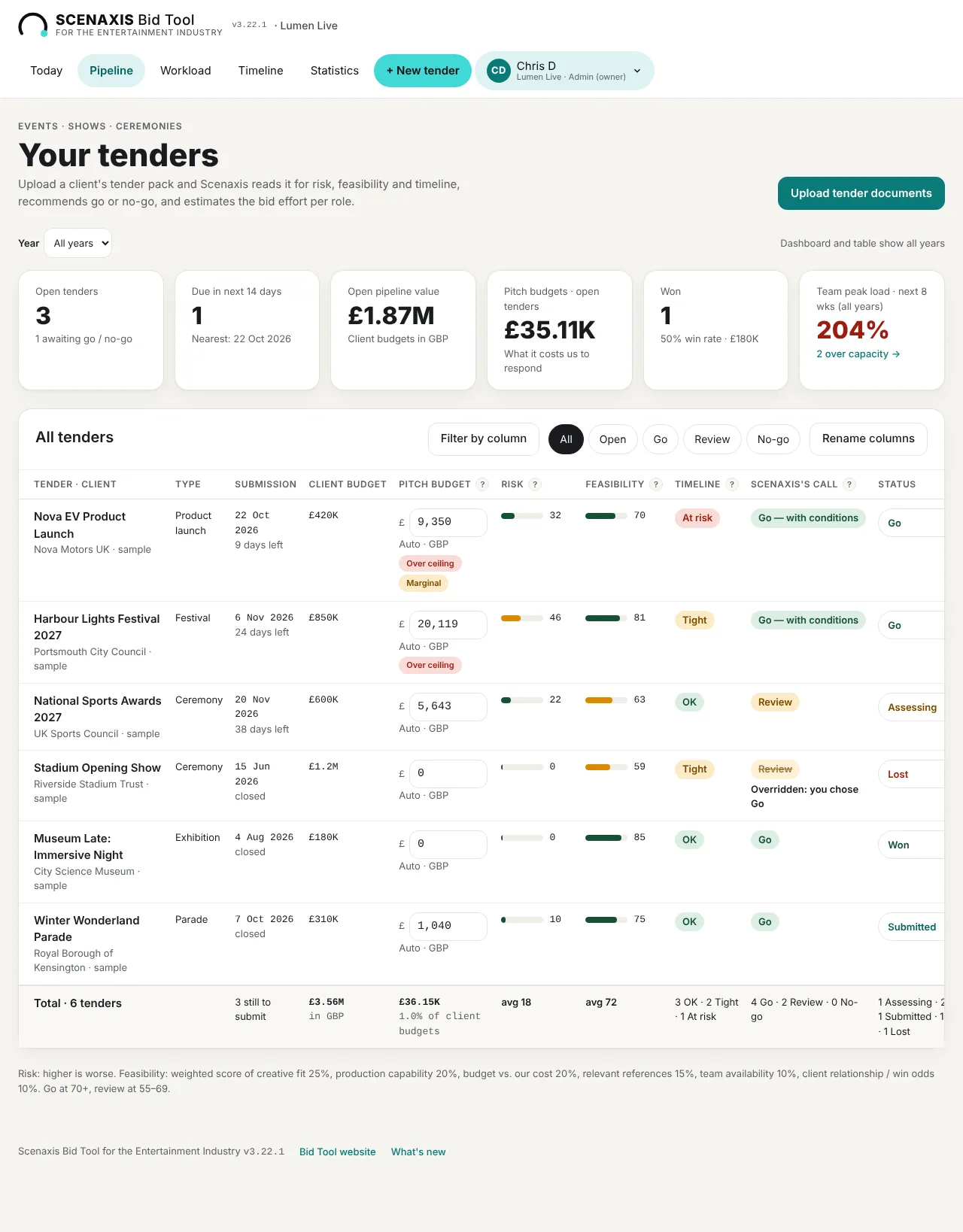
Year filter and welcome checklist
- Year limits the cards and table to tenders with a submission date in that year. “All years” shows everything.
- New accounts see a Welcome checklist with four steps (company profile, team, first tender, first decision). Hide removes it; it disappears by itself once all four are done.
Summary cards

| Card | Shows |
|---|---|
| Open tenders | Assessing + Go, and how many still await a decision |
| Due in next 14 days | Submissions in the next two weeks and the nearest date |
| Open pipeline value | Client budgets of open tenders in your currency (tenders with no exchange rate are left out and counted) |
| Pitch budgets · open tenders | What responding to all open tenders costs you |
| Won | Tenders won, win rate (won ÷ won + lost) and value won |
| Team peak load · next 8 weeks | The highest weekly load of anyone on the team; click to open Workload |
The tender table
| Column | Meaning |
|---|---|
| Tender · client | Click the name to open the tender. This column stays visible when you scroll sideways |
| Type | Event type |
| Submission | Date and days left, or “closed” |
| Client budget | In the tender's currency, with the converted amount when different. “Missing” in red if not entered |
| Pitch budget | Editable. “Auto” follows the estimate; type a figure to fix it. Pills warn Over ceiling, Marginal or Not worth it |
| Risk / Feasibility | Scores out of 100 with a bar |
| Timeline | OK, Tight, At risk or Not feasible |
| Scenaxis's call | The recommendation. Struck through with “Overridden: you chose …” when your decision differs |
| Status | Your decision, colour-coded: amber Assessing, green Go/Won, red No-go/Lost, teal Submitted. Change it here |
| Icons | Report opens the go/no-go report; the bin deletes the tender after a confirmation |
The last row totals the visible tenders: count still to submit, total client budgets, total pitch budgets and their % of client budgets, average scores, and counts by timeline, call and status.
Solo plan: up to 10 open tenders (Assessing, Go or Submitted) at a time. At the limit, + New tender offers to move to Team; Won, Lost and No-go tenders don't count.
Filtering, sorting and column names
- Chips All, Open, Go, Review, No-go filter the table. Open = Assessing and Go tenders; Go, Review and No-go use the final call (your decision where you have made one, otherwise Scenaxis's).
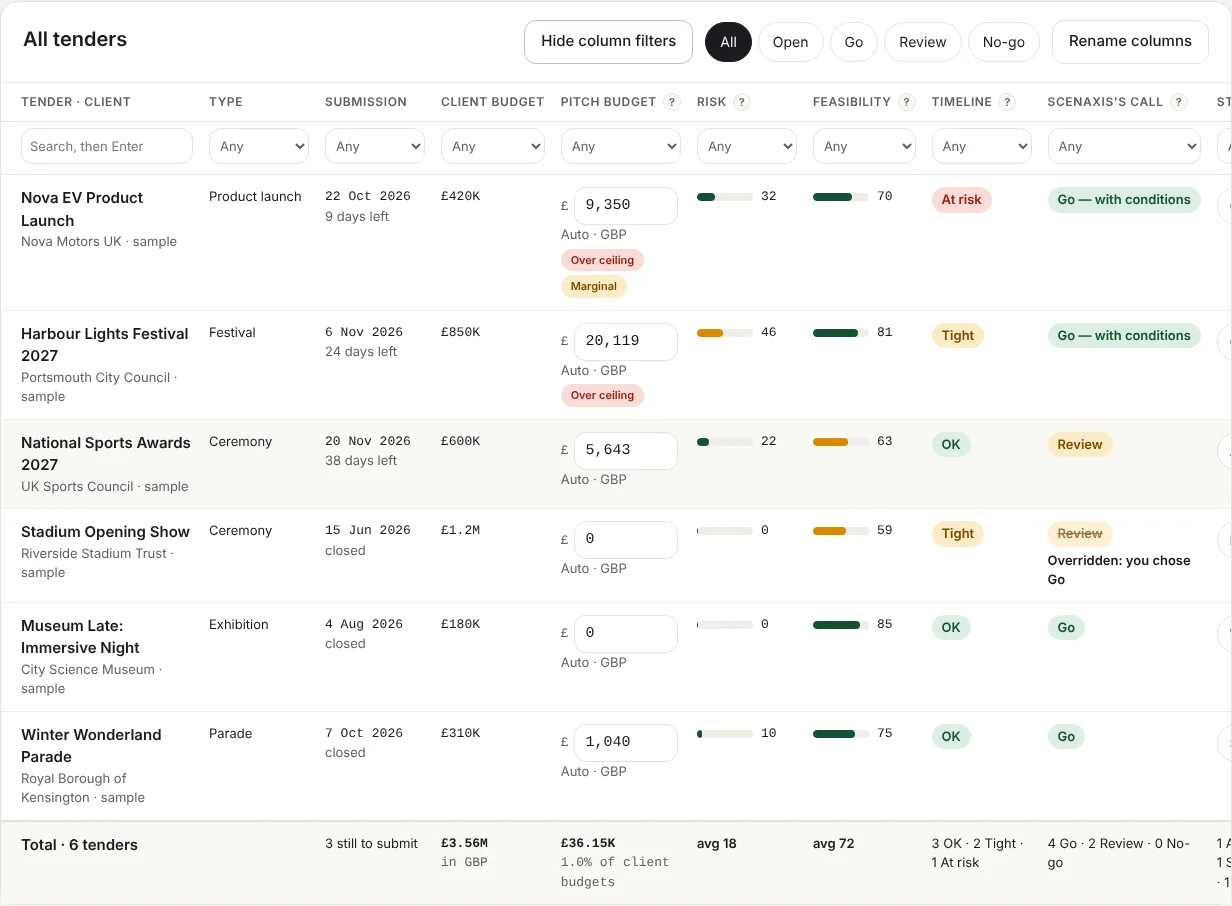
- Filter by column adds a filter under each heading: search by tender or client name (press Enter), or pick a value from a list. Clear filters removes them.
- Rename columns lets you use your own terms (e.g. “Fee” for Client budget). Reset names restores the defaults.
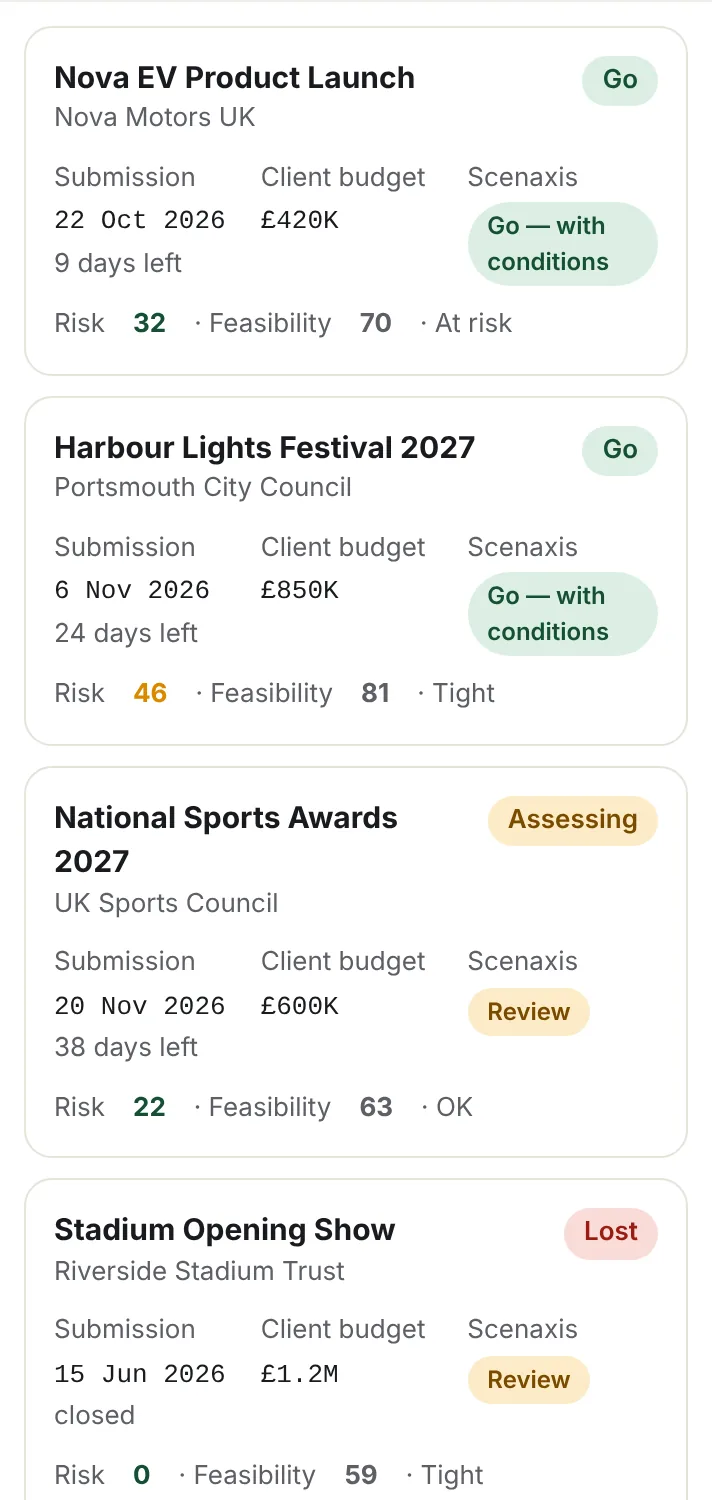
On a phone
Each tender shows as a card with its status, submission date, client budget, Scenaxis's call and scores. Tap a card to open the tender.
8. Workload
Workload shows, week by week, how many bid hours each person has across all tenders compared with their tender time. Use it to spot overload early and to assign, move or reassign hours by drag and drop.
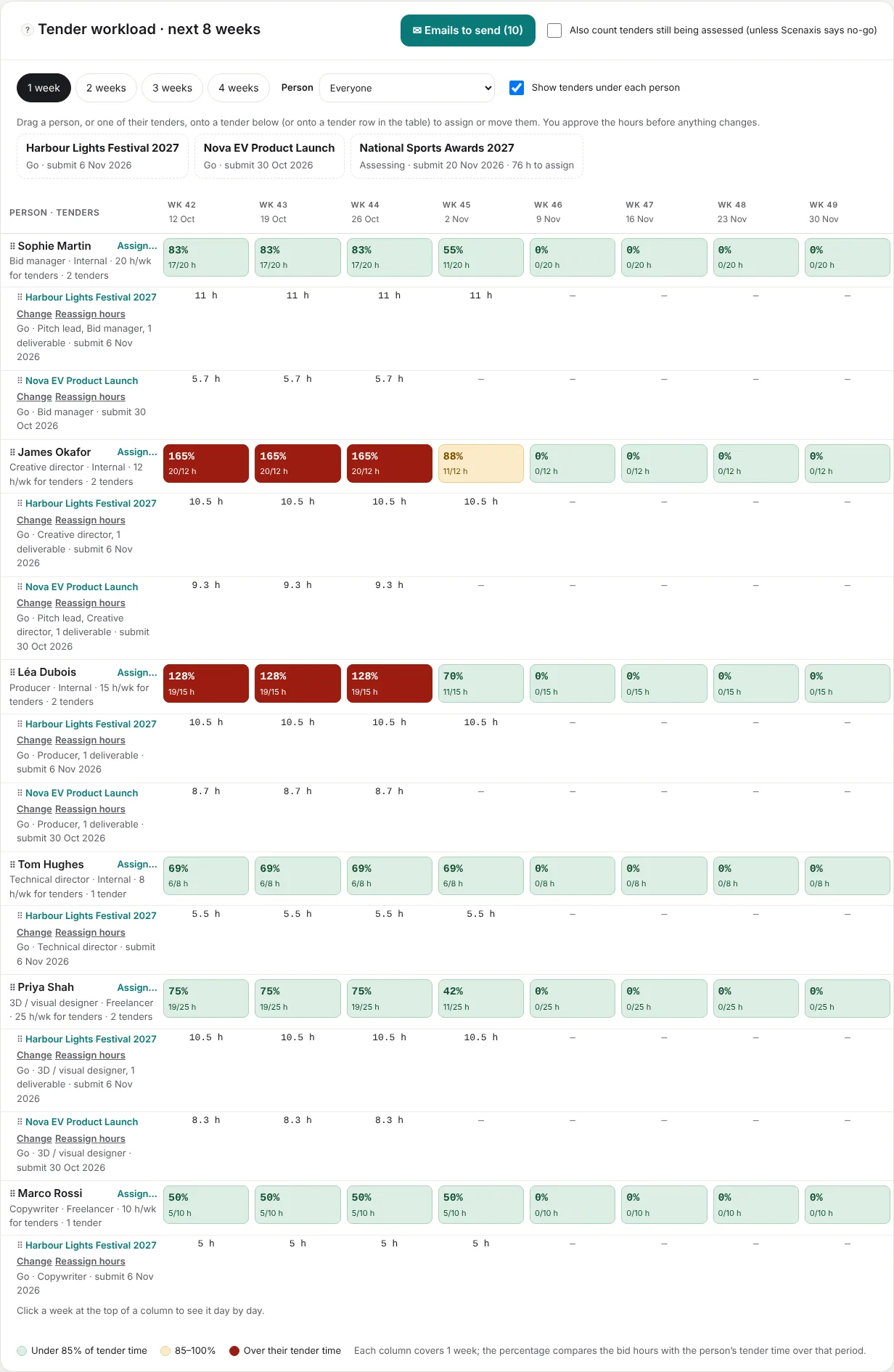
Reading the table
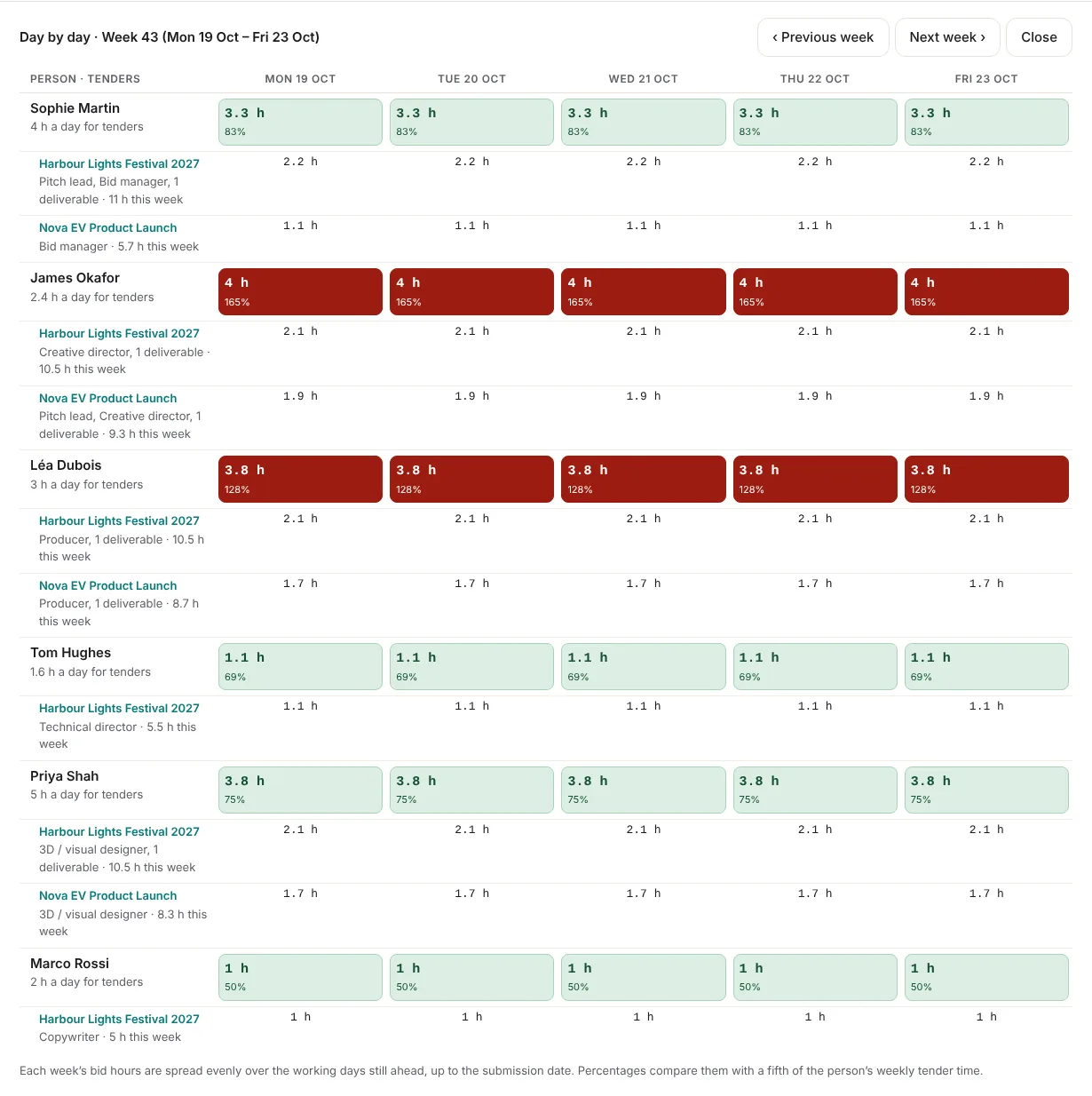
- One row per person, with their role, type and tender time per week. Each cell shows the load as a % of their tender time and the hours (e.g. 72% · 14/20 h).
- Colours: green under 85%, amber 85–100%, red over 100% (more work than time).
- Under each person, one line per tender they work on, with their role, hours per period and submission date. Tenders where they are only pitch lead (no hours) are listed too, with a reminder to assign hours.
- Unassigned at the bottom: bid hours with nobody assigned yet.
- By default only Go tenders count. Tick Also count tenders still being assessed to include Assessing tenders (except those Scenaxis rates No-go).
Controls
| Control | What it does |
|---|---|
| 1 / 2 / 3 / 4 weeks | Groups the columns by 1 to 4 weeks |
| Person | Shows one person only |
| Show tenders under each person | Shows or hides the tender lines |
| Click a week heading | Opens the day-by-day view for that week |
| ✉ Emails to send | Opens the assignment emails (section 9) |
Day-by-day view
Click a week at the top of a column to see Monday to Friday for each person and tender. Days before today and after a tender's submission get no hours. Use Previous week, Next week or Close.
Assigning someone (Assign…)
Click Assign… next to a person's name.
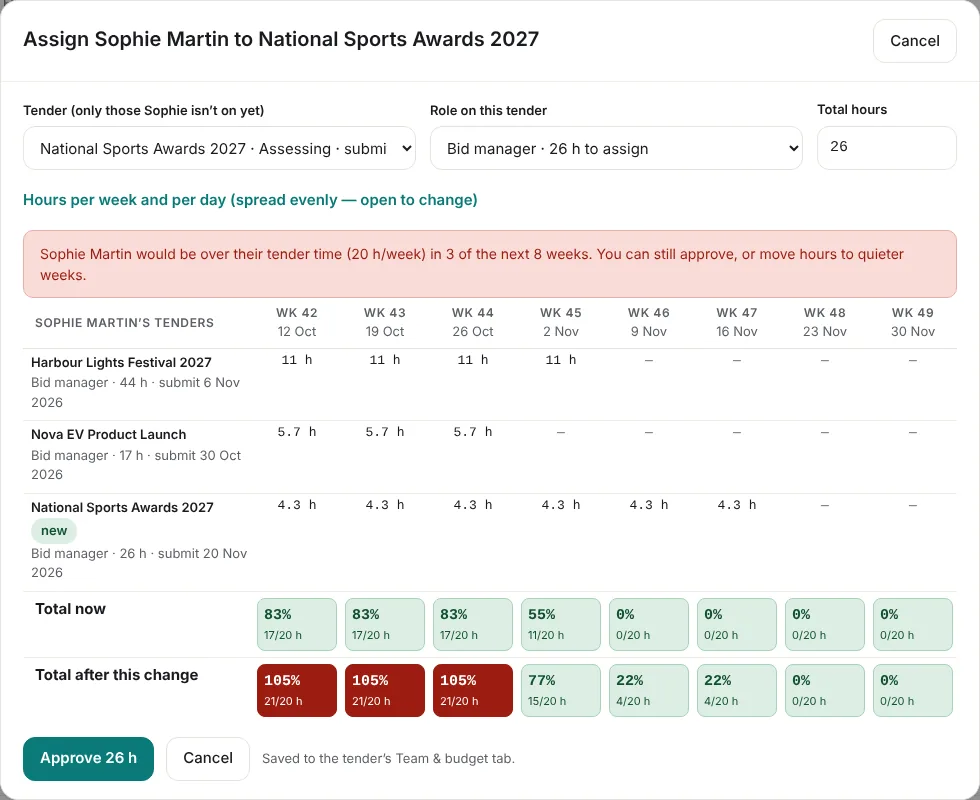
- Tender: only open tenders the person isn't on yet are offered.
- Role on this tender: pick an estimated role (with the hours still to assign) or + Another role… and type a name. The role can differ from tender to tender.
- Total hours: spread evenly from this week to the submission date.
- Hours per week and per day (optional): open it to set a week total, or individual days. A week total is shared across that week's working days; changing a day updates the week total. Spread evenly again undoes your changes.
- Check the preview: every tender of that person, week by week, with their total now and after the change, and a warning if they would go over their tender time.
- Click Approve. The assignment is saved to the tender's Team & budget tab.
Drag and drop
Drag a person (by the ⠇ grip) or one of their tender lines onto a tender card above the table, or onto a tender line in the table. A window opens with the same fields and preview:
- From one tender to another: choose Move (removes their hours on the first tender) or Add, and keep both.
- Onto a tender they are already on: opens Change instead.
Nothing changes until you click Approve.
Changing someone on a tender (Change)
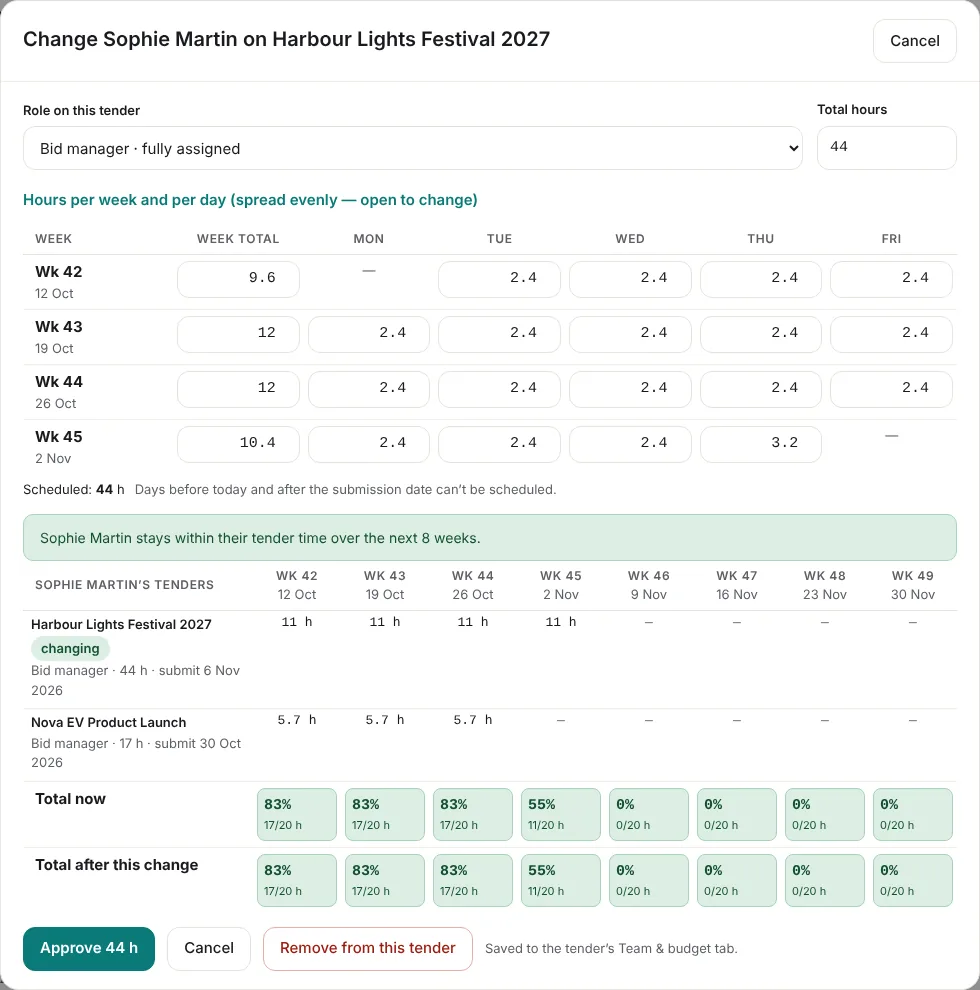
Click Change next to one of a person's tenders to edit their role on that tender, their total hours and their week-by-week or day-by-day schedule. Remove from this tender takes them off it.
Reassigning hours to someone else
Click Reassign hours next to a person's tender to move some of their hours, for a week or for single days, to someone with more room.
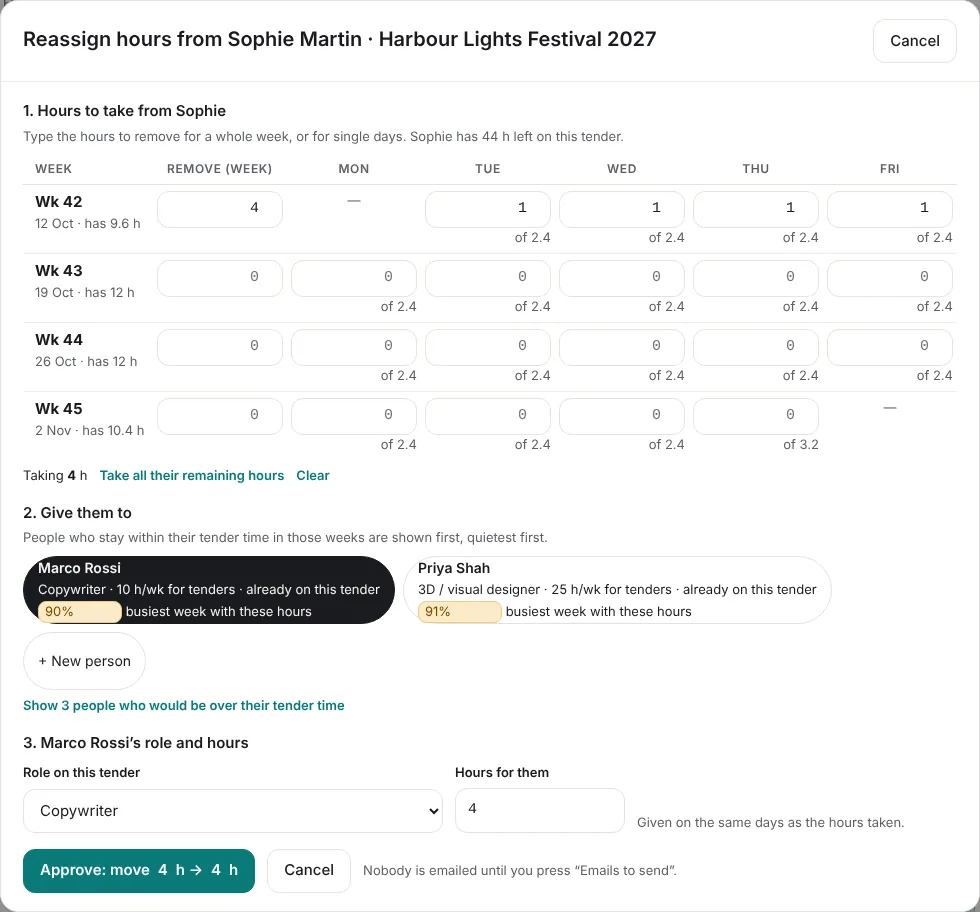
- Hours to take: type hours to remove for a whole week, or for single days. Each box shows how many hours they have that day. Take all their remaining hours fills everything; Clear resets.
- Give them to: people who stay within their tender time in those weeks are listed first, quietest first, with their busiest week as a %. Show … people who would be over reveals the others. Click See workload, week by week under a person to check all their tenders week by week with the hours you're moving added; then ← Back to reassigning hours, or Give the hours to … to choose them. + New person adds someone (name, job title, email, internal or freelancer, tender hours a week, and whether to add them to the company team).
- Role and hours: choose their role on this tender and how many hours they get. A different total is shared across the same days in proportion.
- Click Approve. Both people's schedules are updated. Nobody is emailed until you send the emails (section 9).
9. Emails and reminders
The tool sends three kinds of email about tenders: assignment emails and change emails, which you review and send yourself, and daily reminders to the pitch lead, which are automatic. All come from noreply@scenaxis.com with your company's name, and replies go to the person who pressed Send.
Assignment emails (sent only when you press Send)
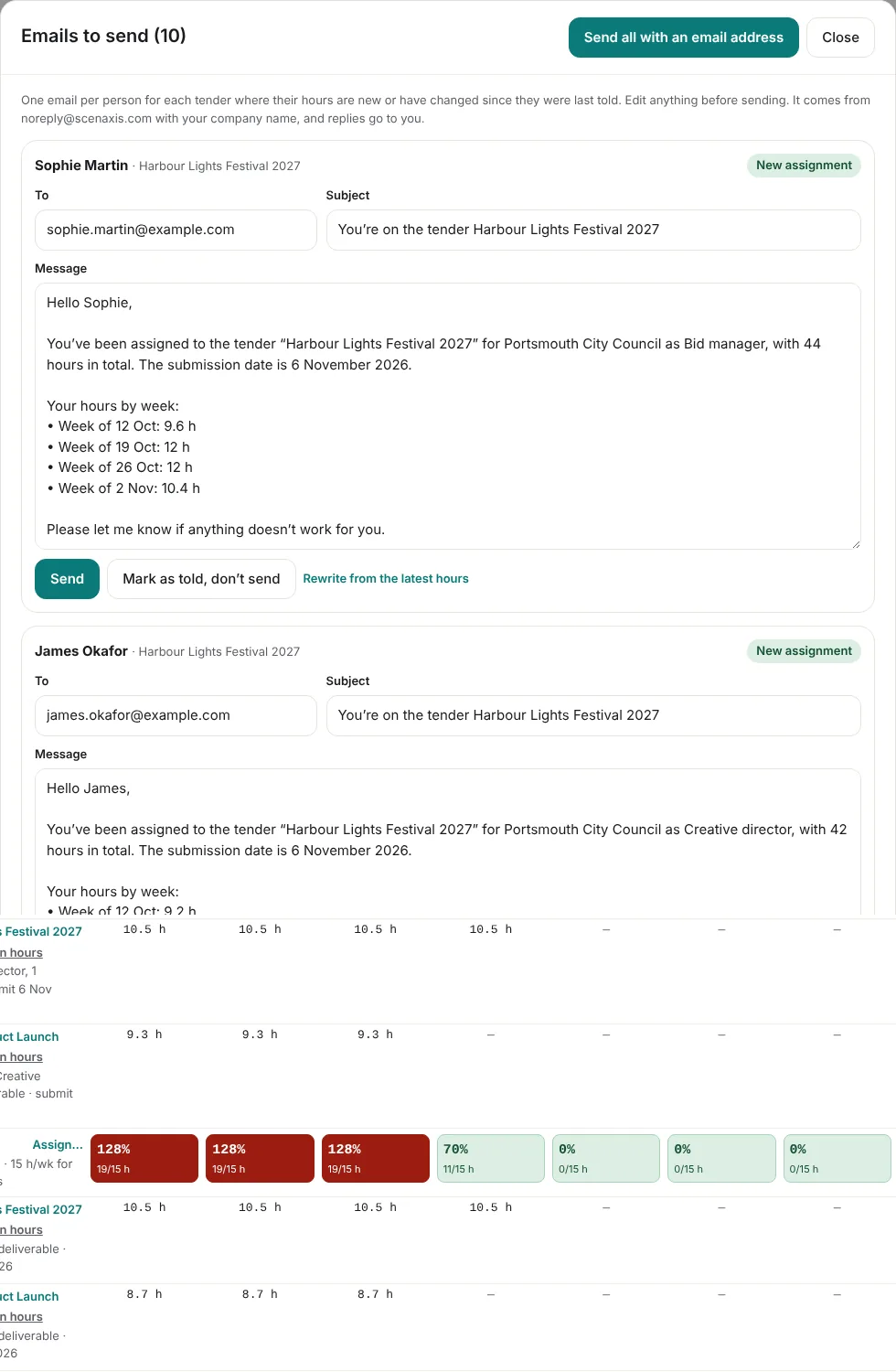
Whenever someone's hours on a tender are new, changed or removed since they were last told, the tool prepares an email for them.
Open the emails from ✉ Emails to send on the Workload page, the Team emails box on a tender's Team & budget tab, or the Today page.
| Label | When | What the email says |
|---|---|---|
| New assignment | First time the person has hours on the tender | Tender, client, role, total hours, submission date, hours week by week |
| Hours changed | Their role, hours or schedule changed | New and previous hours and role, the exact days added or removed (and who they went to or came from), the updated weekly hours |
| Taken off the tender | All their hours were removed | That they are no longer on it, the hours they had, and the days removed |
For each email you can:
- Edit the To address, Subject and Message freely before sending.
- Click Send to send that one, or Send all with an email address at the top.
- Click Mark as told, don't send if you told them another way.
- Click Rewrite from the latest hours to replace your edits with a fresh draft.
Emails can only go to people in your team list. If someone has no email, type it in To; it is saved on their record. After sending, the person drops off the list until their hours change again.
Emails about changes from the client (sent only when you press Send)
After a Q&A, clarification or addendum, ✉ Email the team in the change register (section 6) prepares one email per person — the pitch lead and everyone with hours on the tender. It lists the changes not reviewed yet (or those of the latest update), moved dates first, then deliverables, then the rest, each with its source and impact. Edit, then send. The changes show “Emailed” with the date.
Daily reminders to the pitch lead (automatic)
Every morning (about 7:00 UK time) the pitch lead of each open tender gets an email when something is coming up:
- Key dates — the submission deadline and the deadlines and milestones in the bid timeline — 7 days, 3 days and 1 day before, and on the day. Dates moved by an update are followed automatically.
- Deliverables still open and due within 3 days, with who is responsible.
- Overdue deliverables, on Mondays.
- On submission reminders, the list of mandatory items still open.
Reminders need a pitch lead with an email address, the tender to be Assessing or Go, and Email reminders switched on (Timeline tab). Switch them off for a tender at any time.
Calendar file
On the Timeline tab, Add dates to my calendar (.ics) downloads every key date of the tender as a calendar file. Open it to add the dates to Outlook, Google Calendar or Apple Calendar. Download it again after an update that moves dates.
Account emails
You also receive emails to confirm your sign-up, reset your password, accept an invitation, and confirm changes to your subscription (plan change, cancellation, reactivation, end of subscription).
10. Timeline, Statistics, reports and exports
The Timeline page
Every open bid on one calendar: working phases, clarification deadlines, site visits, submissions and pitch presentations, taken from each tender's documents and later updates.
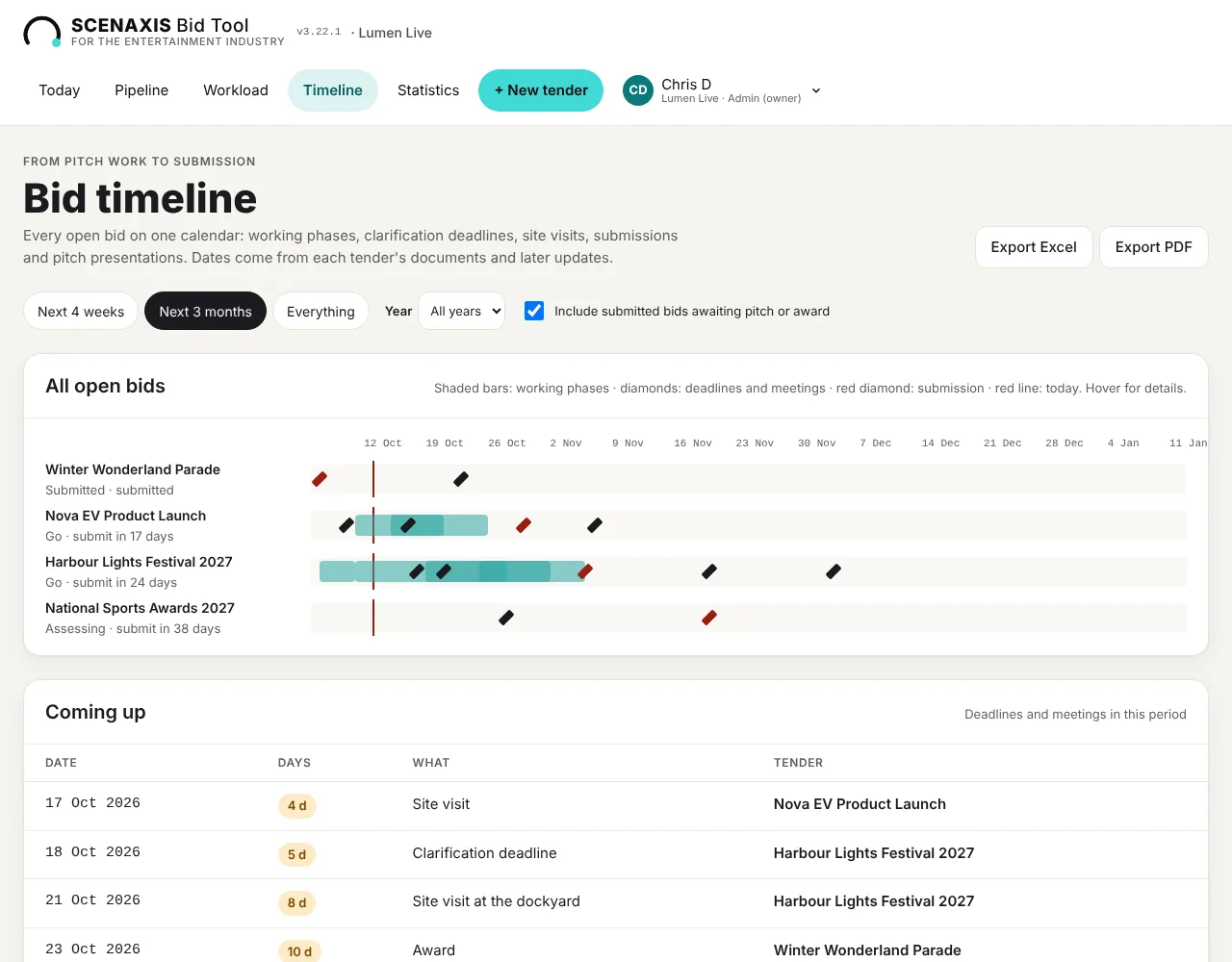
- Choose the range: Next 4 weeks, Next 3 months or Everything, and a Year.
- Tick Include submitted bids awaiting pitch or award to keep submitted tenders on the calendar.
- Shaded bars are working phases, diamonds are deadlines and meetings, a red diamond is the submission, the red line is today. Hover for details.
- Coming up lists every date in the period with days to go, what it is and the tender.
- Export Excel and Export PDF download the calendar and the list.
Statistics
How your tenders are going over time. Tenders count in the year of their submission date; pick a Year or All years.
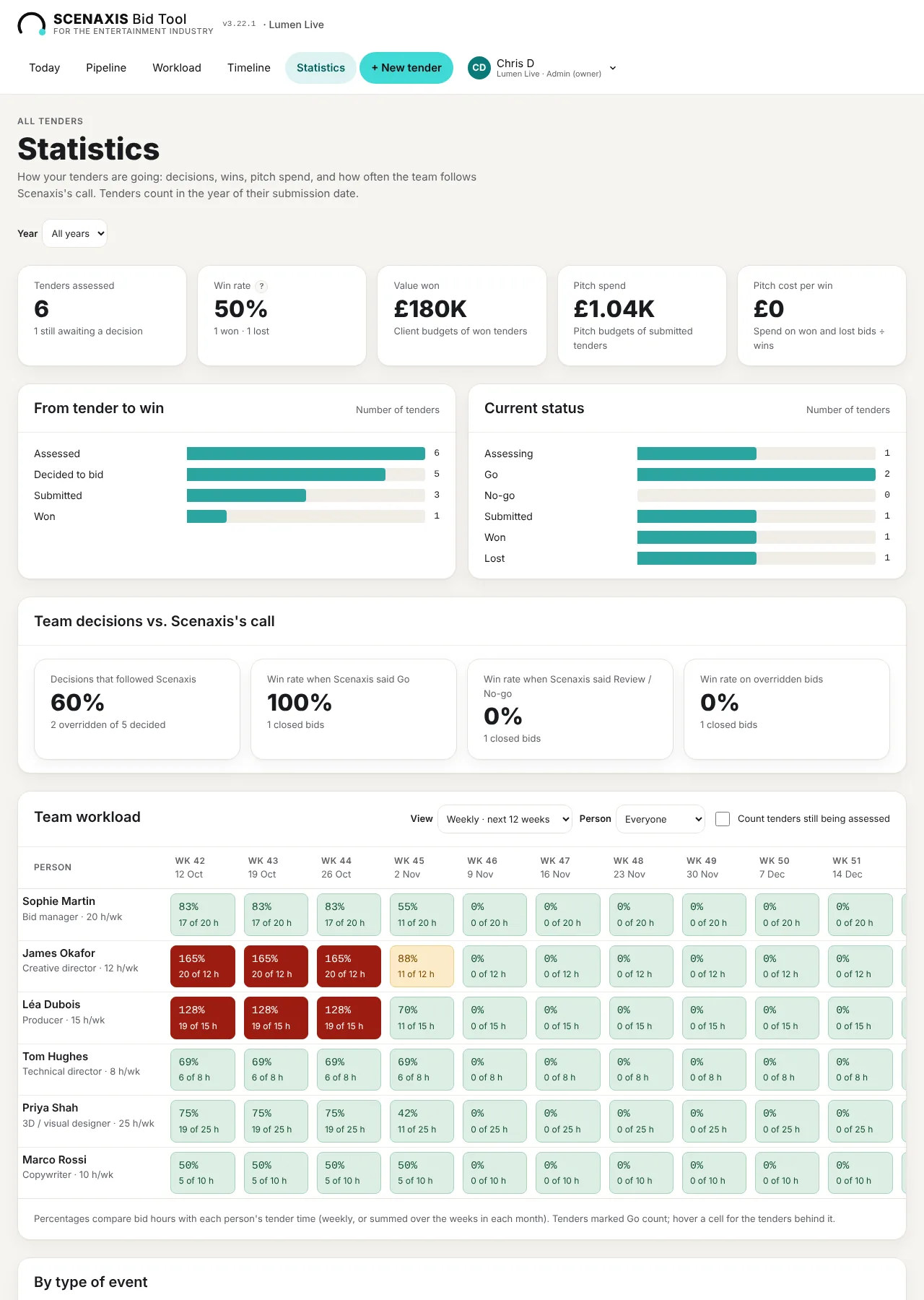
| Section | What it shows |
|---|---|
| Headline figures | Tenders assessed, win rate, value won, pitch spend, pitch cost per win |
| From tender to win | Funnel: assessed → decided to bid → submitted → won |
| Current status | Number of tenders in each status |
| Team decisions vs. Scenaxis's call | % of decisions that followed Scenaxis, and the win rate when Scenaxis said Go, said Review/No-go, and on overridden bids |
| Team workload | Each person's load weekly (next 12 weeks) or monthly (next 6 months), filterable by person |
| By type of event | Assessed, decided to bid, submitted, won, win rate, value won and pitch spend per event type |
| Most common risk types | Risk categories across all tenders (Timeline, Financial, Compliance, Legal, Delivery…) |
| Averages per tender | Feasibility, risk, win chance, average pitch budget and bid effort in hours |
| Year by year | The funnel and money figures for each year |
Reports
Two reports open from the tender page header (and the report icon in the Pipeline):
- Go / no-go report: the decision, the recommendation, scores, key risks, timeline, team and pitch budget on a few pages. For the bid board.
- Full tender report: everything, opening with a written narrative followed by the detailed tables as an appendix.
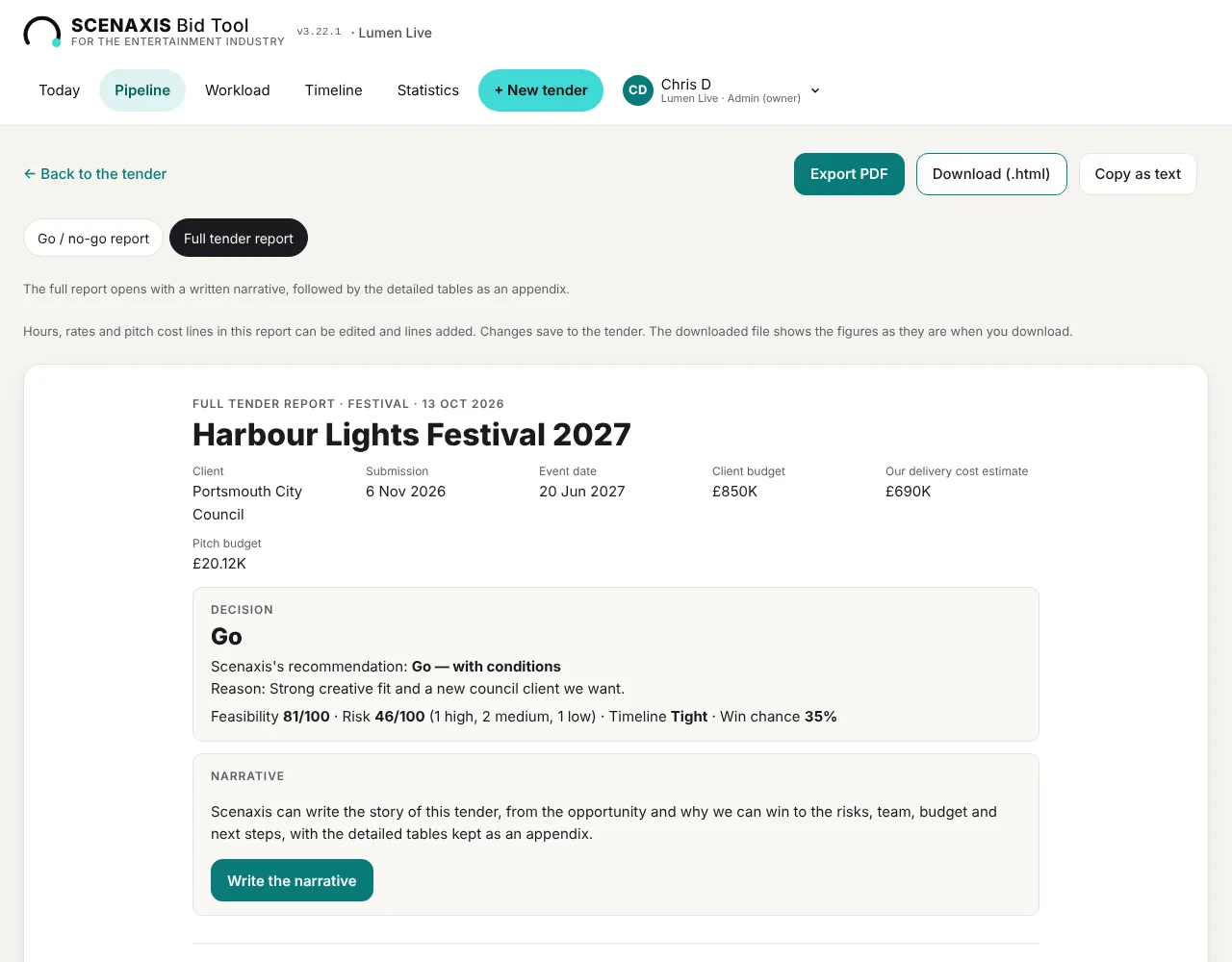
Narrative. Click Write the narrative and Scenaxis writes the story of the tender in ten sections, from the opportunity and why you can win to the risks, team, budget and next steps. Edit any section in place. When the tender changes afterwards, the report tells you the narrative may be out of date and offers to rewrite it.
In a report you can edit hours, rates and pitch cost lines and add lines; changes save to the tender.
| Button | Result |
|---|---|
| Export PDF | Opens the print window; choose “Save as PDF” |
| Download (.html) | A file you can email or open in any browser |
| Copy as text | Plain text to paste into an email or document |
Letterhead and versions. Every report and export carries your company logo and name (set in Account → Company & team), the date and time it was generated and who generated it; PDF and Word files also have page numbers, and Excel files an About sheet. Exporting or copying a report issues it: when the tender has changed since the last issue it gets a new version number (v1, v2…), otherwise it keeps the same one. Report versions, below the report, lists every version with who issued it, when, in which format and what changed since the previous one (decision, scores, pitch budget, dates…). A copy of each version is kept in the Documents tab under Issued reports. Viewers and commenters can export too; their copy is marked "draft, not issued yet" when the tender has changed since the last version.
All exports at a glance
| Where | Export | Format |
|---|---|---|
| Tender → Summary tab | Tender summary, with or without changes | PDF, Word |
| Tender → Updates & history | Change register | Excel, PDF |
| Tender → Documents tab | One document, a group, or all of them | Original files, zip |
| Tender → Timeline tab | Bid and delivery timeline | Excel, PDF |
| Tender → Deliverables tab | Deliverables list with owners and status | Excel, PDF |
| Tender → Timeline tab | Key dates | Calendar (.ics) |
| Tender header | Go / no-go and full reports | PDF, HTML, text |
| Timeline page | All open bids | Excel, PDF |
| Account → Company & team | Full backup | JSON |
11. Currencies and exchange rates
Each tender keeps its own currency and its own exchange rate to your company currency, so a tender in euros or dirhams is converted at the rate you chose on the day you chose it.
Company and tender currencies
- Company currency (Account → Company & team → Default currency) is used for cost rates, pitch budgets and every total.
- Tender currency is detected from the documents or chosen when you add the tender. Change it in the key facts panel on the tender page.
- 34 currencies are supported, including GBP, EUR, USD, CHF, AED, SAR, QAR, KWD, BHD, OMR, EGP, MAD, ZAR, NGN, KES, INR, SGD, HKD, CNY, JPY, KRW, AUD, NZD, CAD, MXN, BRL, SEK, NOK, DKK, PLN, CZK, HUF, TRY and ILS.
Setting a tender's exchange rate
When a tender's currency differs from yours, the key facts panel shows an Exchange rate field: “1 USD = … GBP on [date]”.
- Look at the Reference line under the field: today's reference rate, its source and date.
- Click Use this rate to copy it, with its date and source. Or type your own rate (for example your bank's rate) and its date.
- To double-check, click XE live rate or ECB reference rates; they open the currency portals in a new tab.
Until a rate is set, the tender shows a reminder, appears in Next steps, and its budget is left out of Pipeline totals (the cards say how many were left out).
Reference rates

| Source | Used for | Updated |
|---|---|---|
| European Central Bank euro reference rates | Every currency the ECB publishes | Each working day, around 16:00 CET |
| ExchangeRate-API (open access) | Currencies the ECB doesn't publish (e.g. AED, SAR, QAR) | Daily |
The tool refreshes the rates every working day. If the stored rates are missing or more than 4 days old, it fetches new ones as soon as you open a page. Refresh rates on the Company page or a tender forces an update. The Company page lists every rate against your currency (Show all rates), with the currencies used in your tenders first.
Reference rates are for guidance only: a tender's rate never changes by itself. Update it when you want to, for example at submission.
12. Billing, support and your data
Plans
| Solo | Team | Agency | |
|---|---|---|---|
| Price per month (VAT included) | £30 | £70 | £160 |
| Editors (admins included) | 1 | 2, then £20 a month each | Unlimited |
| Viewers and commenters | Free, unlimited | Free, unlimited | Free, unlimited |
| Open tenders at a time | 10 | Unlimited | Unlimited |
| Companies | 1 | 1 | Unlimited |
| Document analyses per company per month | 30 | 100 | 300 |
Every plan starts with a 7-day free trial and includes every feature: summaries, change register, documents, workload, emails, reports and exports. Payment is by card on Stripe's secure page; Scenaxis never sees your card number.
Plan & billing
Open Account → Plan & billing (admins). It shows your current plan, its price and status (trial, renewal date or cancellation), and the three plans side by side.
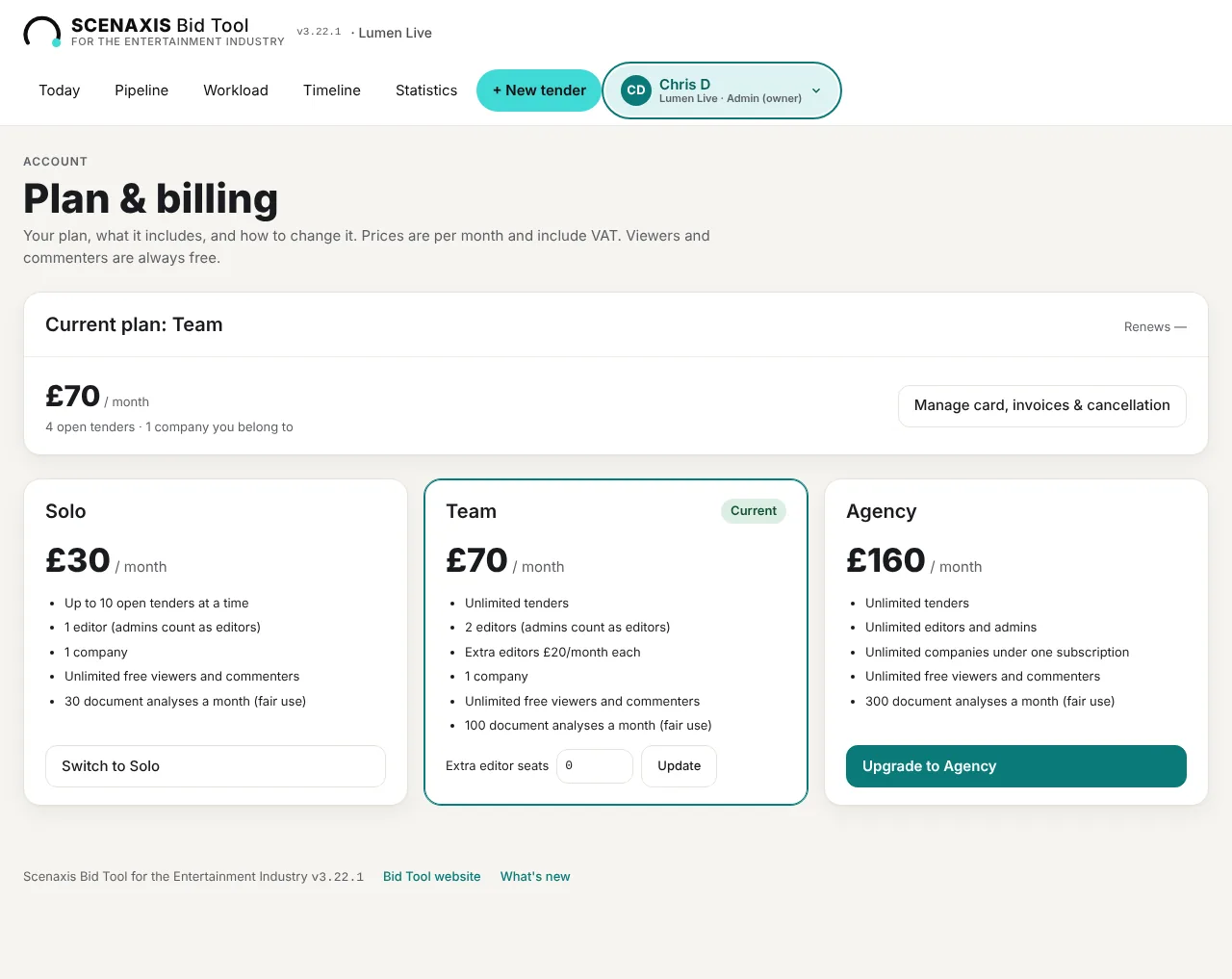
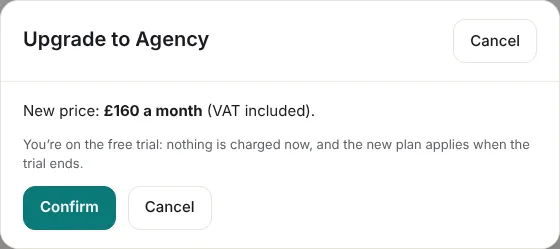
- Change plan: click the plan you want. A window shows the new price and what changes before you confirm. An upgrade is charged straight away for the rest of the month; a downgrade is credited on your next invoice. You can't move to a plan whose editor limit you exceed: remove editors first (Users & roles).
- Extra editor seats (Team): set the number and click Update.
- Manage card, invoices & cancellation opens Stripe's billing page: update your card, download invoices, or cancel. If you cancel, access continues to the end of the period you have paid for, and you can reactivate before then.
If a payment fails, a red banner asks you to update your card; the tool keeps working meanwhile. When a subscription has ended, logging in offers to choose a plan again, or View the data (read only).
Help & support
Open Account → Help & support.
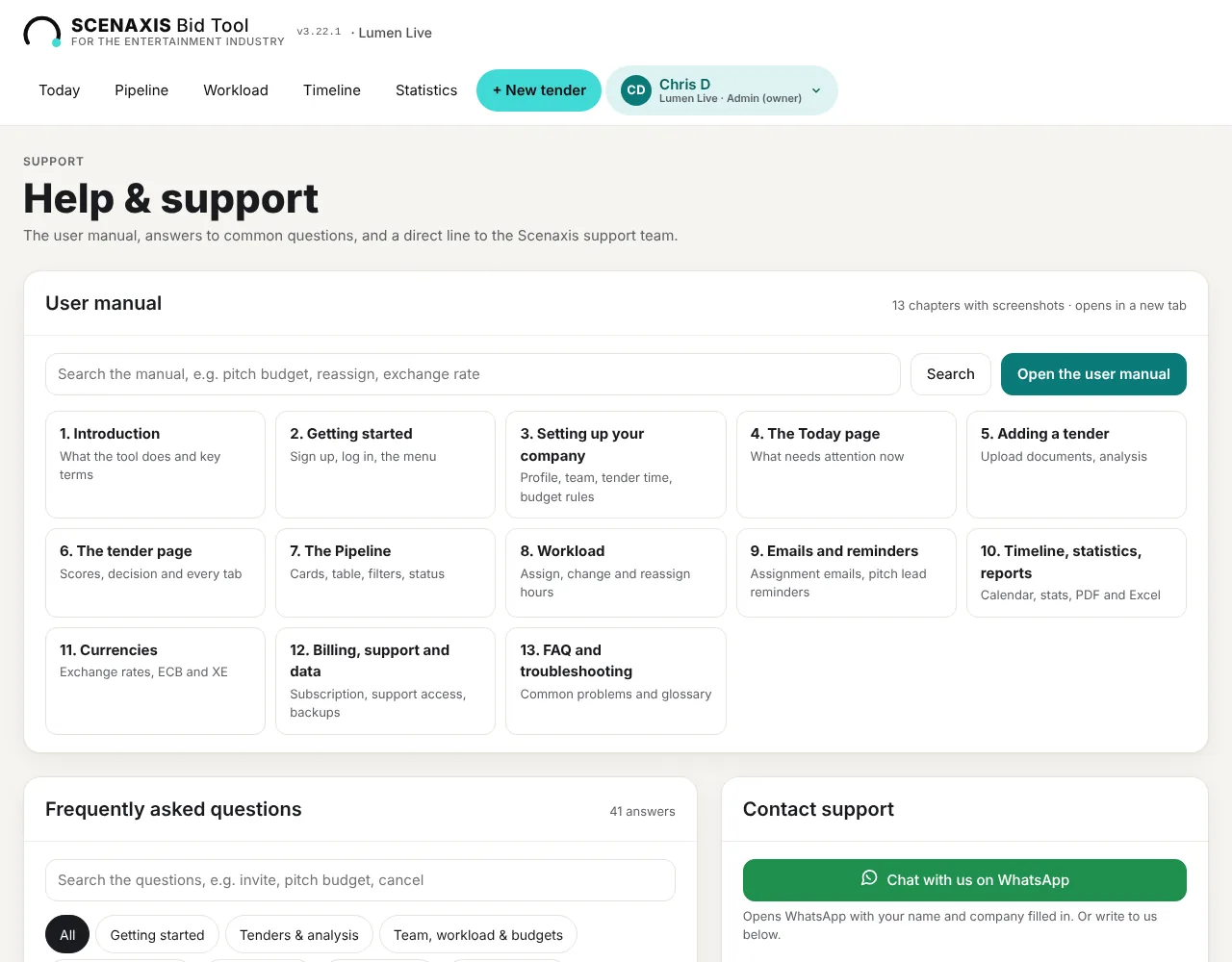
- User manual: search it or open a chapter (this manual).
- Frequently asked questions: searchable answers by topic, each with a link to the right chapter.
- Contact support: choose a topic (Question, Something isn't working, Billing, Idea or suggestion), write your message and click Send to support. The reply comes to your email. Your company, tool version and current page are included automatically.
- Chat with us on WhatsApp (and the green Support button on every page) opens WhatsApp with your name and company filled in.
- Support access is off by default: support can see your account and subscription status, but not your tenders. Click Allow support access for 7 days if you want them to look at a problem with you. Access is read-only, ends by itself, and every view is listed on this page.
Who can see your data
Only the people invited to your company, according to their role. Other subscribers can never see your tenders, documents, team, partners or settings, and companies under one Agency subscription are kept apart. Scenaxis support sees your tenders only while you allow support access.
Data retention
If your subscription ends, your data and documents stay available read-only for 180 days so you can download them or renew. Everyone in the company gets a reminder email 14 days before the end; after 180 days everything is deleted permanently. Invoices and billing records are kept longer, as the law requires.
Backups and import
- Download a full backup (.json) on the Company page saves every tender with its version history, the team and settings in one file. Keep one before big changes. Documents are not in the backup: download them from each tender's Documents tab (Download all).
- Import from the earlier version brings in tenders, history, team and settings from a backup file. Imported items are added to what is already there; nothing is overwritten.
What's new
The What's new link at the bottom of every page lists each release of the tool and what changed, and a window shows the new releases when you log in after an update. The version number is shown next to the logo.
13. FAQ, troubleshooting and glossary
Frequently asked questions
Can I disagree with Scenaxis's recommendation? Yes. Your bid decision always wins. Set it on the tender page or in the Pipeline's Status column and add a reason. The Pipeline shows the recommendation struck through as “Overridden”, and Statistics tracks how overridden bids turn out.
Can I change a score? Yes, any of the six feasibility scores (Overview tab). The feasibility score and recommendation update immediately. Risks, timeline and hours change when you add new documents in Updates & history.
How do I add the client's clarification answers or Q&A? Tender → Updates & history → choose what you're adding → add the files or paste the text → Update the assessment. A version is saved first, so you can compare or restore. Every change is listed in the change register with its source.
How do I make sure the team knows about a change? In the change register, click ✉ Email the team, check the emails and send them. Then tick the changes as reviewed.
Where are the tender documents? In the tender's Documents tab: everything added since version 3.22, grouped by when it was added. Download one, a group, or all of them as a zip.
Someone is red on the Workload page. What do I do? Click Reassign hours on one of their tenders and give some hours to a person listed first (they have room). Or open Change and move their hours to quieter weeks. Then send the emails so both people know.
Do emails go out automatically? Only the pitch lead reminders. Assignment emails and emails about changes are prepared for you and sent only when you press Send.
Does changing a pitch budget rule update old tenders? Yes, every tender is recalculated straight away, except a pitch budget you approved yourself on a tender.
Why isn't a tender in the workload? Only Go tenders count by default. Tick “Also count tenders still being assessed”, or set the tender to Go. Tenders past their submission date have no more bid hours.
How do I add a colleague? Account → Users & roles → Invite someone. Viewers and commenters are free; editors and admins use a seat.
Troubleshooting
| Problem | What to do |
|---|---|
| A PDF can't be read | It is probably a scan without a text layer. Run OCR on it, or paste the text |
| A file says “Not stored” | It was over 50 MB, added before version 3.22, or document storage isn't set up. Use Add the file to store a copy under 50 MB |
| “Your company has used all its document analyses” | The allowance resets on the 1st of the month. Move to a bigger plan or contact support if you need more |
| “You can't add more open tenders on Solo” | Close tenders (Won, Lost or No-go) or move to Team |
| An invitation doesn't arrive | Check spam for noreply@scenaxis.com, then click Resend in Users & roles |
| The invitation link opens the admin's account | Choose Log out and continue as the invited person, or open the link in a private window |
| No reminder emails arrive | Check the tender has a pitch lead with an email, reminders are switched on, and its status is Assessing or Go. Check spam for noreply@scenaxis.com |
| An email won't send | Add a valid email in To. Emails only go to people in your team list |
| No exchange rate shown | Click Refresh rates, or use the XE / ECB links and type the rate |
| Pipeline totals look low | Tenders with no exchange rate are left out; the cards say how many |
| “Changes can't be saved” | Your role is viewer or commenter, or the subscription isn't active (an admin can renew it in Plan & billing) |
| Session expired | Log in again; nothing you saved is lost |
| A page looks out of date | Refresh the browser. After a tool update, a refresh loads the new version |
Still stuck? Use Account → Help & support → Contact support, the Support button for WhatsApp, or write to supportbidtool@scenaxis.com.
Glossary
| Term | Meaning |
|---|---|
| Assessing / Go / No-go / Submitted / Won / Lost | Your bid decision and the tender's progress |
| Bid response timeline | From today to the submission date: the work to prepare the bid |
| Delivery timeline | From award to the event: the work to deliver it |
| Ceiling | The most you will spend on a pitch, as a % of the client budget |
| Change | Something a Q&A, clarification or addendum adds, changes, removes or clarifies |
| Change register | The list of every change with its source, impact and review |
| Contingency | Safety margin added to the estimated pitch budget |
| Deliverable | Something the response must include, from the client's documents |
| Editor seat | A paid place for an editor or admin; viewers and commenters are free |
| Expected return | Win chance × expected margin; compared with the pitch budget in the worth-it check |
| Feasibility | 0–100 score from six weighted criteria; 70+ Go, 55–69 Review |
| Key date | Submission, deadline or milestone that triggers reminders |
| Pitch budget | Cost to prepare and present the bid, not to deliver the event |
| Pitch lead | Person leading the response; receives reminders |
| Risk score | 0–100; High risk 22, Medium 10, Low 4 |
| Tender summary | One-page overview and full digest of the tender, with sources |
| Tender time | Hours a week a person can spend on bids |
| Load % | Bid hours in a period ÷ tender time for that period |
| Worth-it check | Worth it under 50% of expected return, Marginal 50–100%, above 100% likely to lose money |
Scenaxis Group Ltd · Questions? Write to supportbidtool@scenaxis.com.